
MINUTE Function
An Excel Date/Time Function that returns the minute component of the Time between 0 to 59, depending on the time value used as an input.


What Is The MINUTE Function?
The MINUTE function is an Excel Date/Time Function that returns the minute component of the Time between 0 to 59, depending on the time value used as an input.
The MINUTE function is primarily used in time tracking, scheduling, and data analytics operations, where it is crucial to extract and modify specific time data components.
The function makes it simple to look at time values and execute calculations and measurements based on specific time components.
As we know, Time comprises three components - hours, minutes, and seconds.
One hour consists of 60 minutes. Since we have 24 hours a day, there are 1440 minutes in a day.
Though this is just the breakdown of Time, what’s important for us, is the time value since it is what the function will use as an input to extract the minute component.
In this article, we will learn about the MINUTE function and how to use it, along with an example to help us understand it better.
- The MINUTE function is an Excel Date and Time function that extracts the minute component from a given time and returns it as a numeric value.
- The syntax for the MINUTE function typically includes one argument representing the time from which to extract the minute. It returns the minute component as a number between 0 and 59.
- The MINUTE function is commonly used in various applications, such as time tracking, scheduling, and data analysis, where extracting and manipulating specific components of time values is essential.
- The MINUTE function may return an error if the specified argument is not valid or if the time value falls outside the supported range. In such cases, it may return a #VALUE! error indicating the nature of the problem.
Understanding The MINUTE function
The MINUTE is categorized as a Date and Time function that extracts the Time's minute component.

If the Time is equal to 10:48:56 P.M., then the MINUTE function extracts the number 48. The function ignores the hour and second component from the Time given in hh:mm: ss format.
Similarly, if the Time is equal to 11:56:41 P.M., the function returns the number 56.
The syntax for the function is:
=MINUTE(serial_number)
Where,
- serial_number - (required) the time value used to return the minute component. Excel even accepts the argument as text strings (for example, “10:41 P.M”) or decimal values (such as 0.9930555555, which corresponds to 11:50 P.M).
MINUTE function Example
Based on the article so far, we are pretty confident that you already know how to use the function. All you need to do is reference the cell in the function, and it will work its magic.
This is just general advice. If you want to maximize any function's potential, the best approach is to reference the cell address rather than hardcoding the values in the formula.
For example, suppose that you have the data as illustrated below:
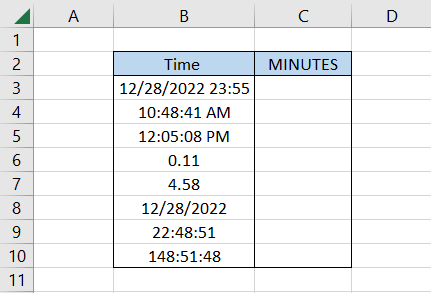
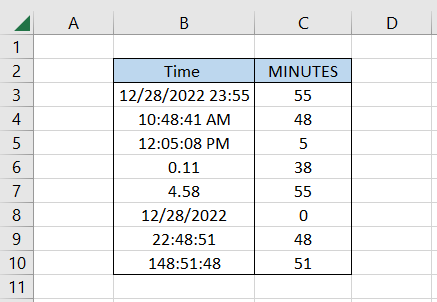
To get the minute component, we will use the formula =MINUTE(B3) in cell C3 and drag it down till cell C10, which gives the result:
Interpretation
- For the time and date value 12/28/2022 23:55, we get the result as 55, which is extracted from the time value. The given date is completely ignored and does not affect the result.
- In the case of time value, as in cells B4 and B5, the function naturally extracts the minutes.
- Since the Time is stored as decimal numbers, Excel converts those numbers into Time behind the scenes and returns the corresponding numbers. For example, 0.11 is equal to 2:38:24 A.M., using which the function returns the result as 38.
- Similarly, the function returns the result as 55 since the Time corresponding to 4.58 is equal to 1:55:12 P.M.
- Although cell B8 does not contain a time value, Excel stores a default value of 12:00:00 A.M., which is why we get the result as 0.
- Finally, the values in cells B9 and B10 also return the results as 48 and 51, respectively.
Practical Example Of MINUTE Function
Date and Time form the core datasets in Excel. So whatever you work on will always have hints of date and time values, where functions such as DATE, HOUR, MINUTE, and SECOND come into play.
Suppose you are going through all the video call transcriptions using the Otter.AI application you had with the clients for a particular period.
The data looks as illustrated below:
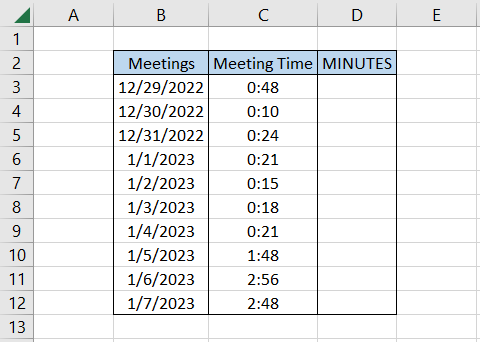
You remember that a critical piece of information lay in the recordings that were less than 25 minutes.
To check which recordings fill the criteria, we will use the formula =IF(AND(MINUTE(C3)<25,HOUR(C3)=0),"Check the recording","") in cell D3 and drag it down till cell D12 that gives the result:
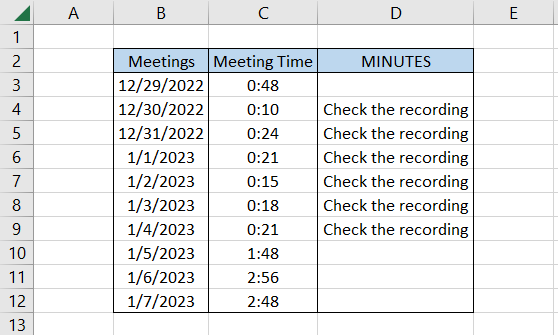
The MINUTE function ensures that only the recordings with less than 25 minutes are included, whereas the HOUR function ensures that no recordings beyond one hour are considered.
Finally, the AND function brings both conditions together and returns the result as ‘Check the recording’ for some video transcriptions.

MINUTE vs. HOUR function
The HOUR function falls under the Date and Time category, which, not surprisingly, returns the hour component from the given time value.

The value returned can be between 0 (12:00 A.M.) and 23 (11:59 P.M.), depending on the Time you input inside the function.
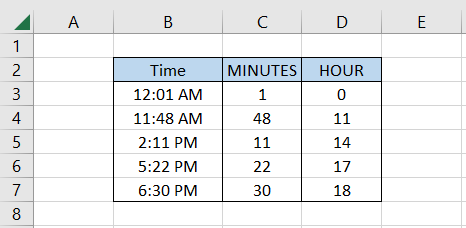
For example, if the Time is 11:48 A.M., the function returns the result as 11, whereas if the Time is 2:45 P.M., the function returns the result as 14. Even though the Time is represented in 12-hour format, expect the function to return the number in 24-hour clock format.
The syntax for the function is:
=HOUR(serial_number)
Where,
- serial_number - (required) the Time from which the hour component is extracted. The function accepts arguments in the form of text strings (for example, “09:10 P.M”) or decimal values (such as 0.000694444444, which corresponds to 12:01 A.M).
Finally, let’s see the difference between the MINUTE and HOUR functions using an example to compare the results from both functions.
Suppose that you have the data as illustrated below:
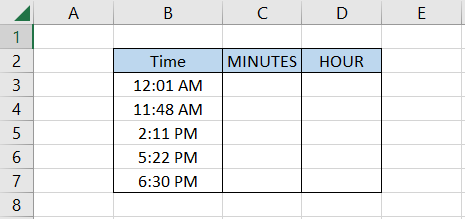
To find the minute component, we will use the formula =MINUTE(B3) in cell C3 and drag it down to cell C7, which gives the result:
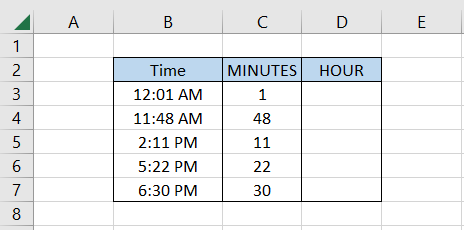
The hour component can be extracted similarly but using a different formula in cell D3 i.e., =HOUR(B3), and dragging it down till cell D7, which gives the result:
MINUTE vs. SECOND function
Another function that completes the trilogy of time-based functions is the SECOND, which extracts the second component of the given Time. To be precise, the seconds component is the final jigsaw in the hh:mm:ss format.

Similar to the MINUTE function, the SECOND function also returns a number between 0 and 59, depending on the time value you use as input in Excel.
NOTE
Normally when you work on time-based values, Excel does not display but shows the hh:mm format. This can be changed by reformatting the Time into the desired format.
You don’t need to worry about the format because Excel still stores the Time up to the seconds.
So if you have the time as 10:29:48 A.M. and use the SECOND function, it will return the result as 48.
The syntax for the function is
=SECOND(serial_number)
Where,
- serial_number - (required) the time value used to extract the second component. Excel accepts this argument even as text strings(for example, “01:45:48 AM”) or as a decimal number(0.000694444444, which corresponds to 12:01 A.M.).
Finally! Let’s see a small example to compare the results returned using either of the two mentioned functions. Suppose we have the data as illustrated below:
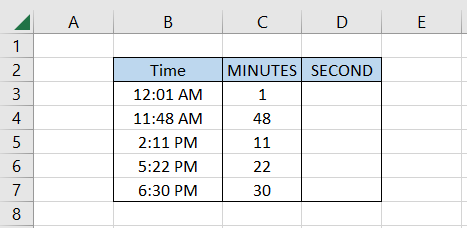
Here, we already have the minute components in column C. Conversely, the Time seems to be represented in hh:mm format. Will we get the desired results in column D?
We will use the formula =SECOND(B3) in cell D3 and drag it down to cell D7, which gives the result as
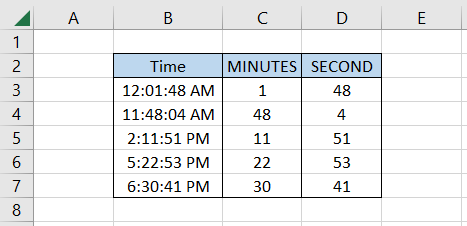
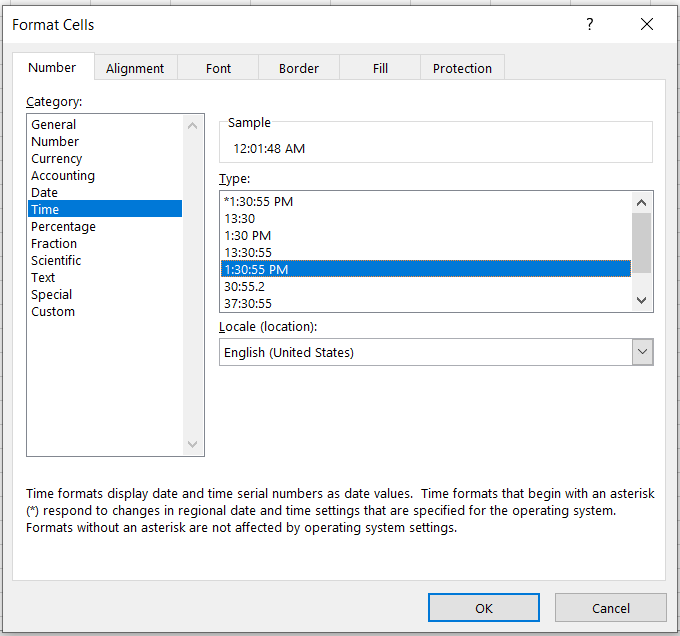
So we did have a seconds component in the given time values. To remove this confusing element from the calculations, select the range B3:B7 and press Ctrl +1 to open the format cell dialog box.
Head over to Time, select the format with hh:mm:ss AM/PM, and then click on OK.
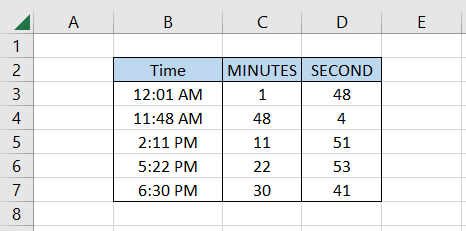
This will give the Time values in the selected format:

Free Resources
To continue learning and advancing your career, check out these additional helpful WSO resources:

or Want to Sign up with your social account?