
REPLACE Function
Replace a specific number of characters in a text string with a different text string based on the number of characters specified


What Is The REPLACE Function?
One of the most important and common functions of Excel is Replace Function, which we will discuss further.
While working on Excel, sometimes, we need to exchange some text with something else. Applying replace function in Excel lets you change any information you like in just a few steps.
Based on the number of characters you give, this function substitutes a different text string for a portion of a text string.
No matter the default language choice, each single or double-byte character counts as 1. When the location of the text that has to be altered is known or easily ascertainable, this function is helpful.
- The REPLACE function in Excel allows you to substitute a portion of a text string with a different text.
- The function has four required arguments: old_text, start_num, num_chars, and new_text.
- You can use the REPLACE function manually by typing the formula or using the Excel ribbon.
- The function is designed for text strings only and may not work properly with dates, times, or numbers.
- Be careful with the start_num and num_chars arguments, ensuring they have correct values and are not negative or non-numeric.
The formula for REPLACE Function
Like every other function, this one also requires a proper formula.

=REPLACE(old_text,start_num,num_chars,new_text)
There are four separate arguments in this function. Unlike other functions, all arguments must be put in for the formula to work.
The four arguments mentioned above are:
- old_text: The text which you want to replace. This is a required parameter.
- start_num: The character's position in old_text that you want to exchange with new_text.This is a required parameter.
- num_chars: The number of characters you want to replace. This is a required parameter.
- new_text: The text you want to exchange the old text with. This is a required parameter.
How to use REPLACE Function
There are two ways to use this function. They are:
A) Doing it manually
1. Select the cell which will contain the new text
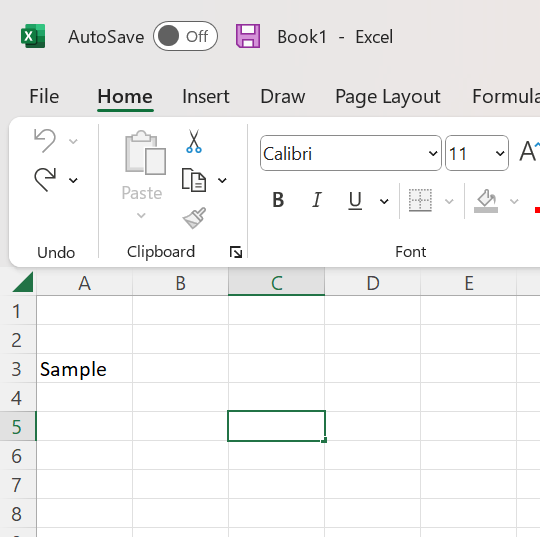
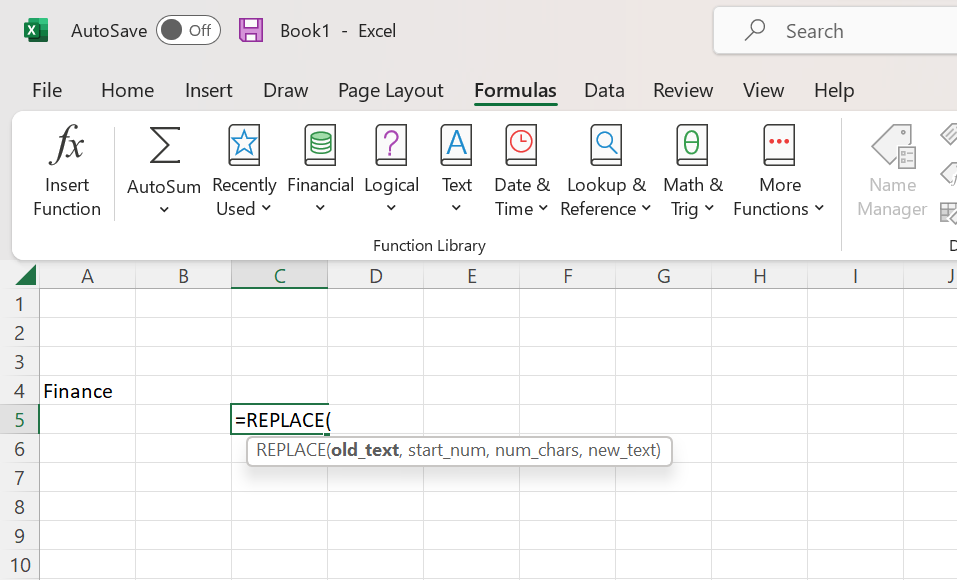
2. Type =REPLACE( in the selected cell)
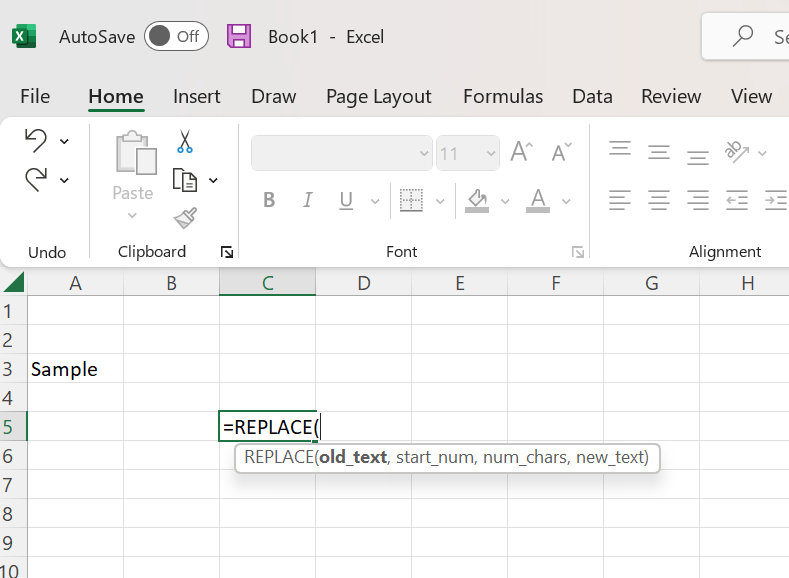
Another way to calculate this is:
Type =RE and select the required function from the drop-down menu by double-clicking on it
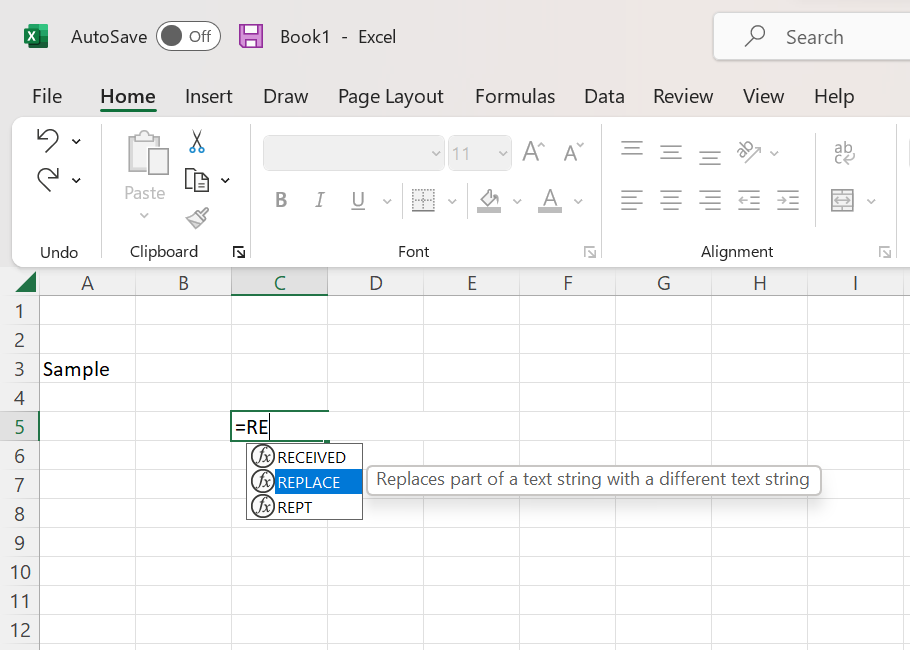
1. Enter the arguments explained above
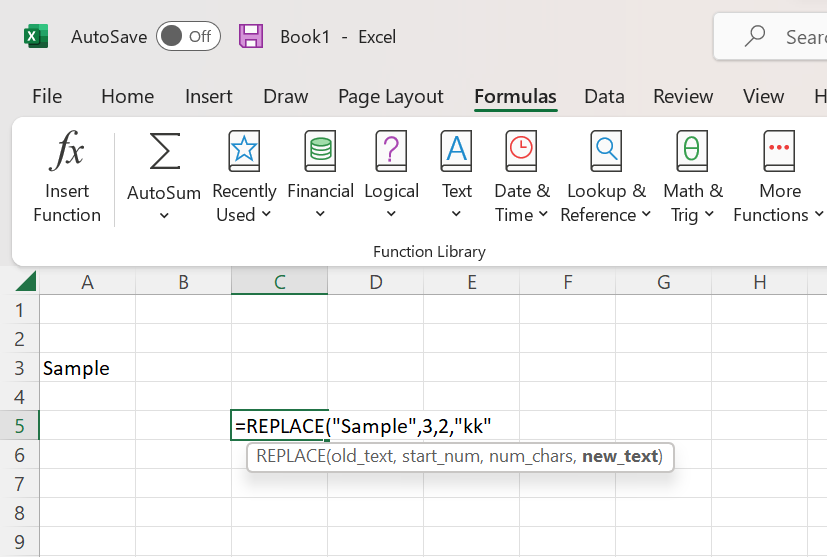
2. Close the function by typing “)” and pressing ENTER key, and you will get your required result in the selected cell
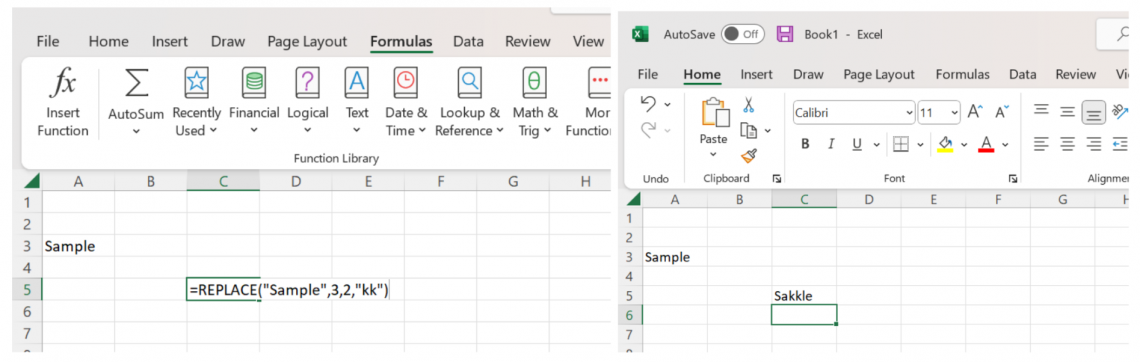
B) Using EXCEL ribbon
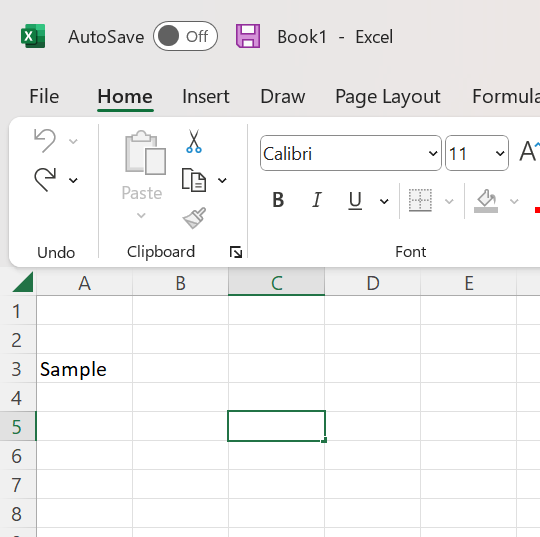
1. Select the cell which will contain the new text
2. Click the FORMULA tab

3. Select the TEXT from the ribbon
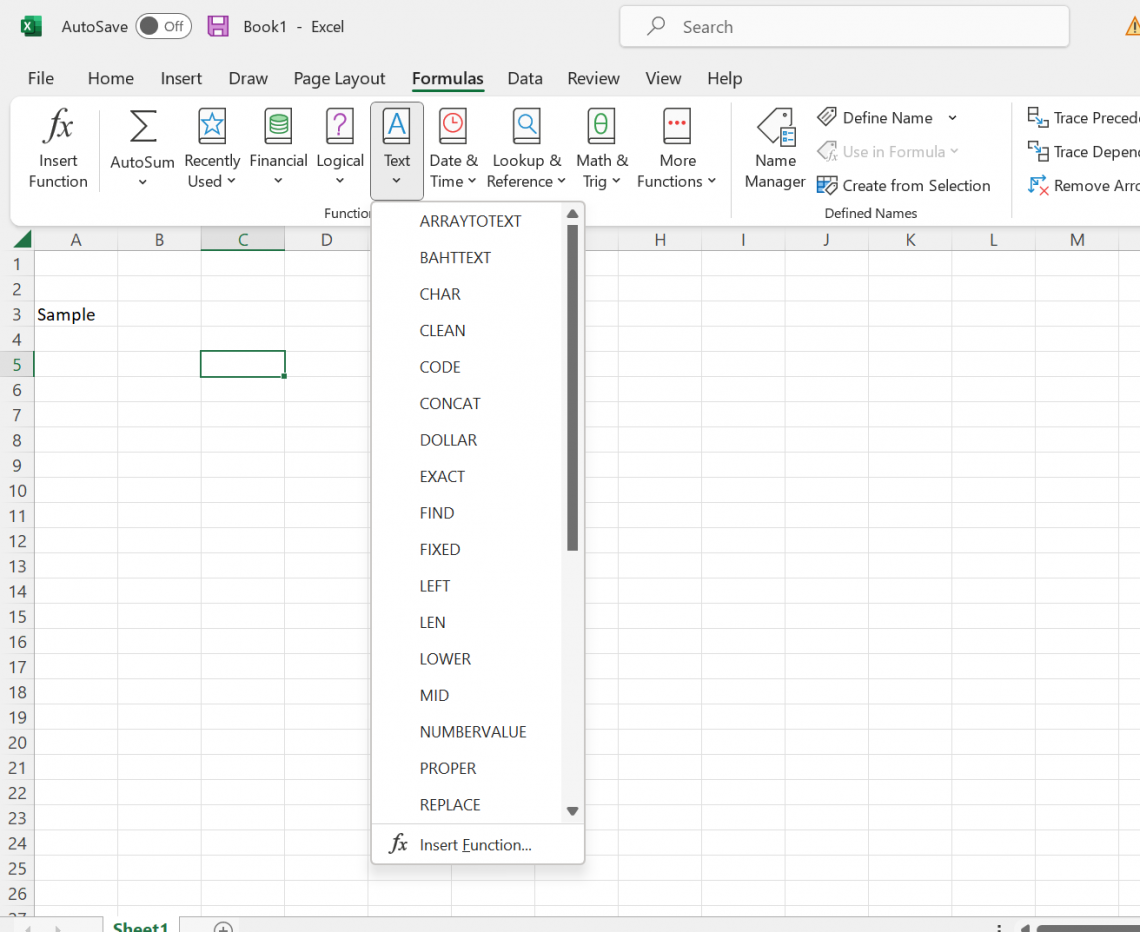
4. Select the REPLACE function from the drop-down menu
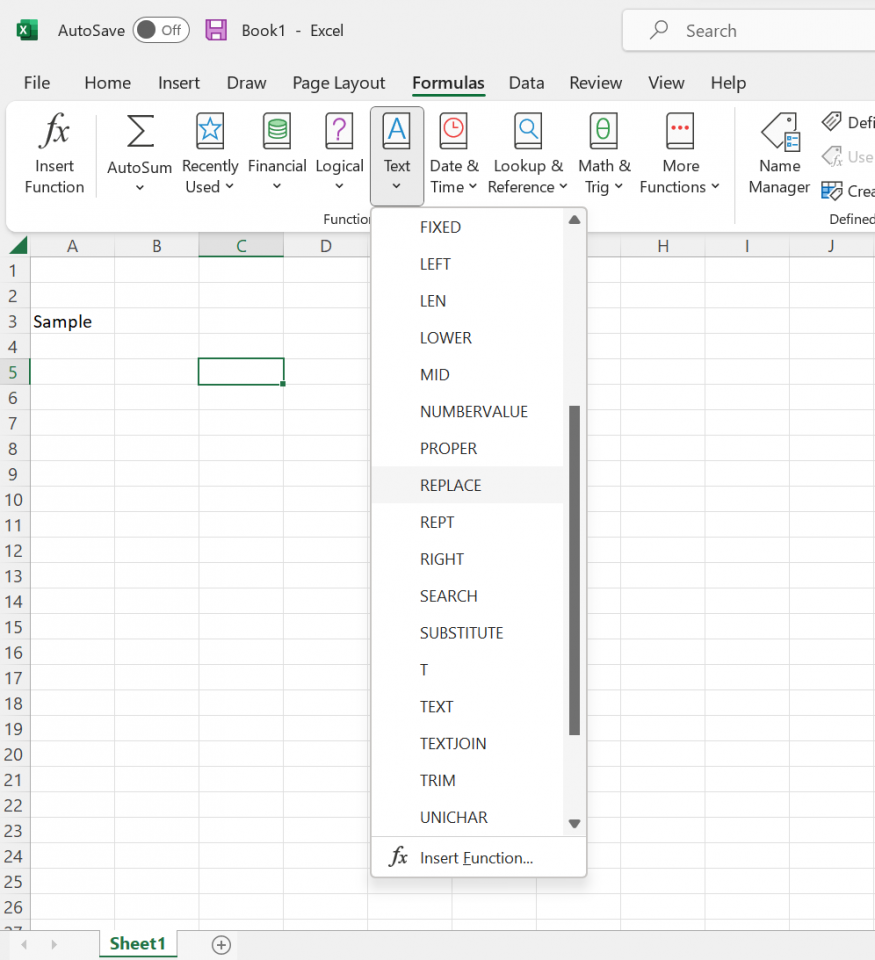
5. In the Functions Argument window, type the four required arguments (old_text, start_num, num_chars, new_text) in their places

6. Click OK after doing everything
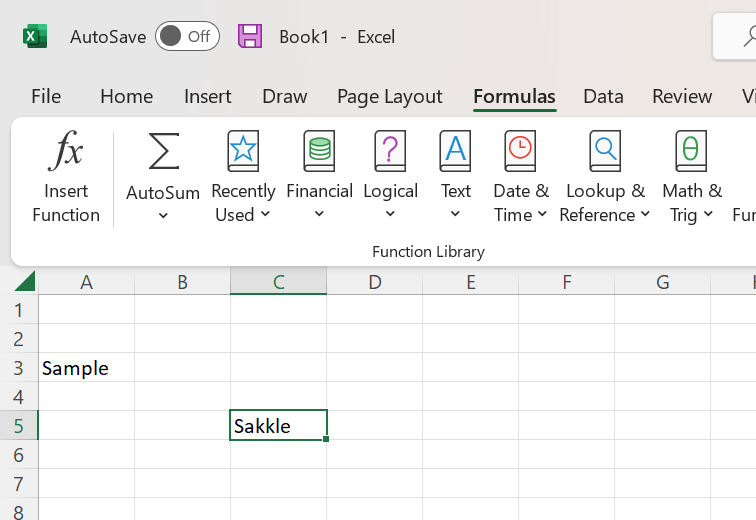
Factors to remember after completing the REPLACE Function
This function may not work for a date, time, or number. As a result, it may produce unexpected results because it is intended for text strings only.
You can remedy this issue using Excel’s Text to Columns tool if you don't intend to use the date, time, or number in additional calculations.
The steps are as follows:
1. Choose the cells you want to convert to text. The chosen text must not be in more than one column
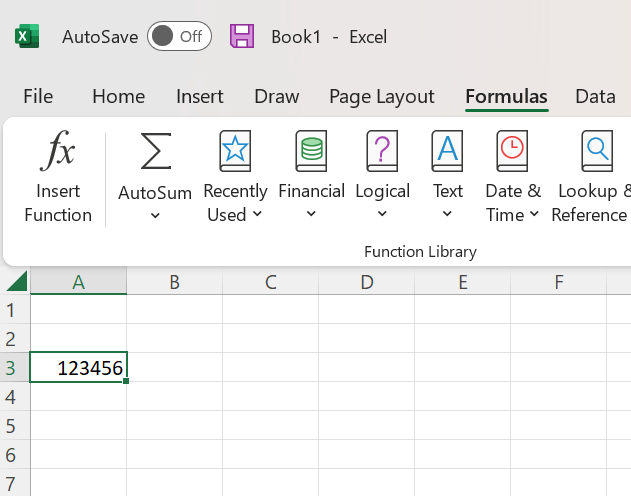
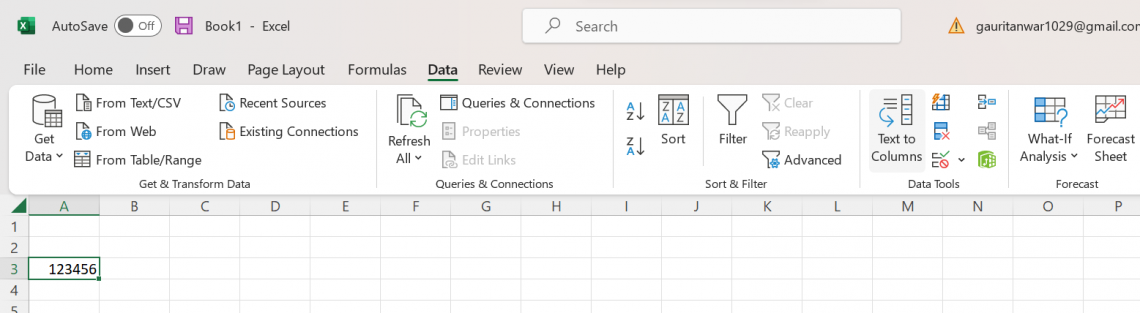
2. Choose Text to Columns from the Data tab of the Excel ribbon, as shown below
3. Click the next button after ensuring the Delimited option is chosen
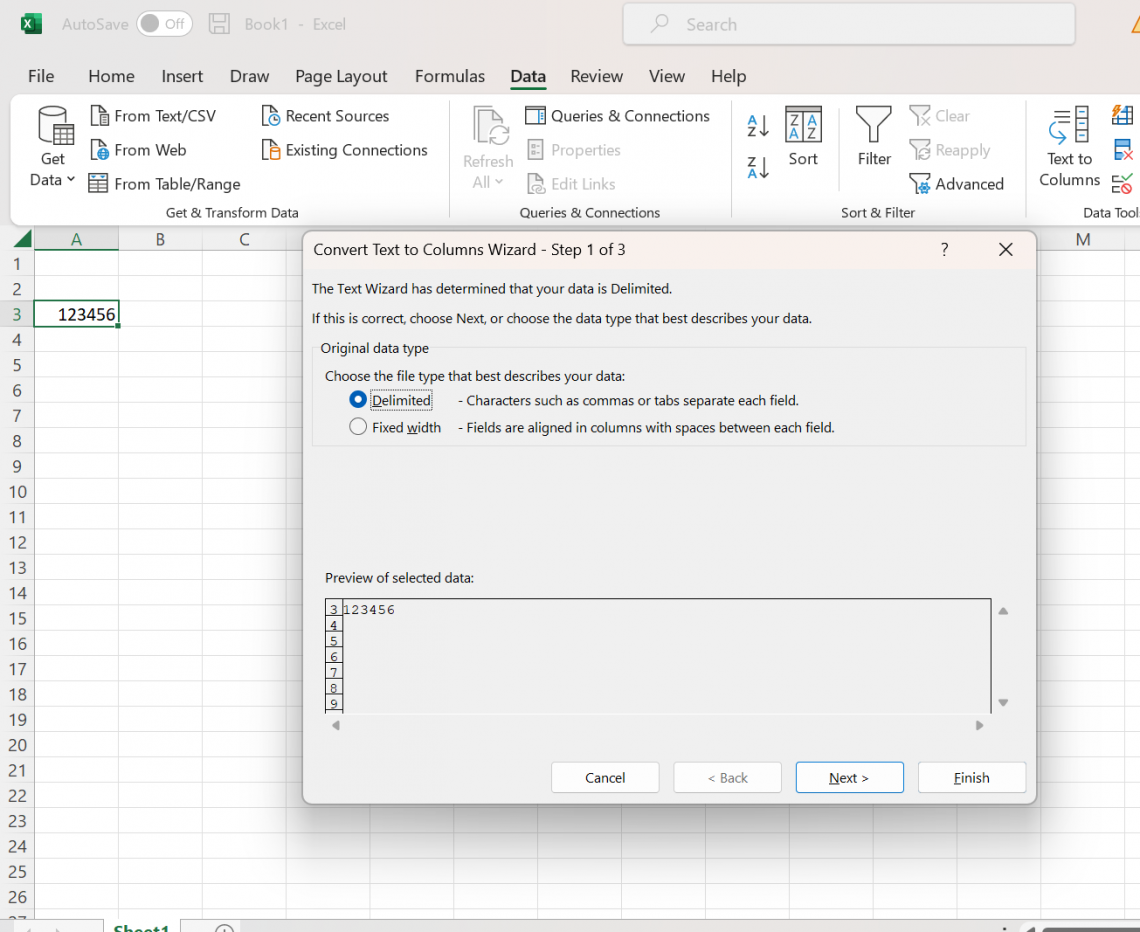
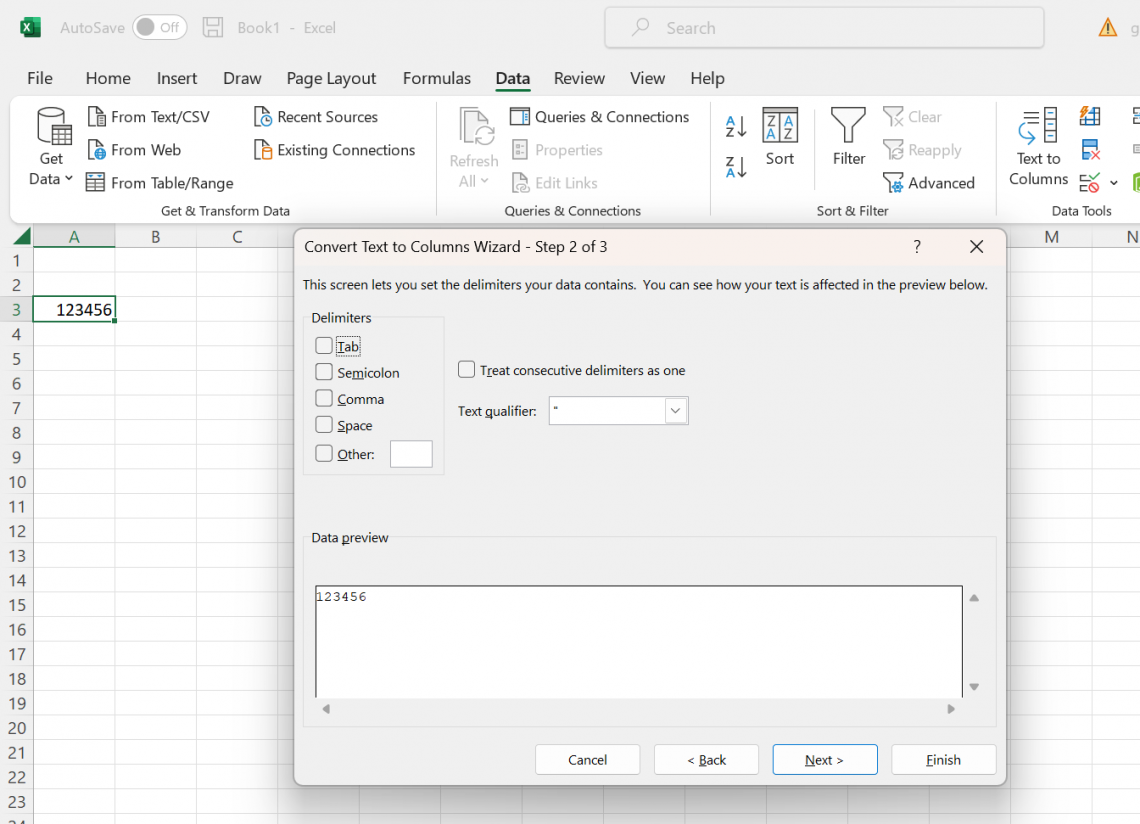
4. Click next once more after ensuring none of the delimiter options are selected. Finally, click the Finish option after selecting your text
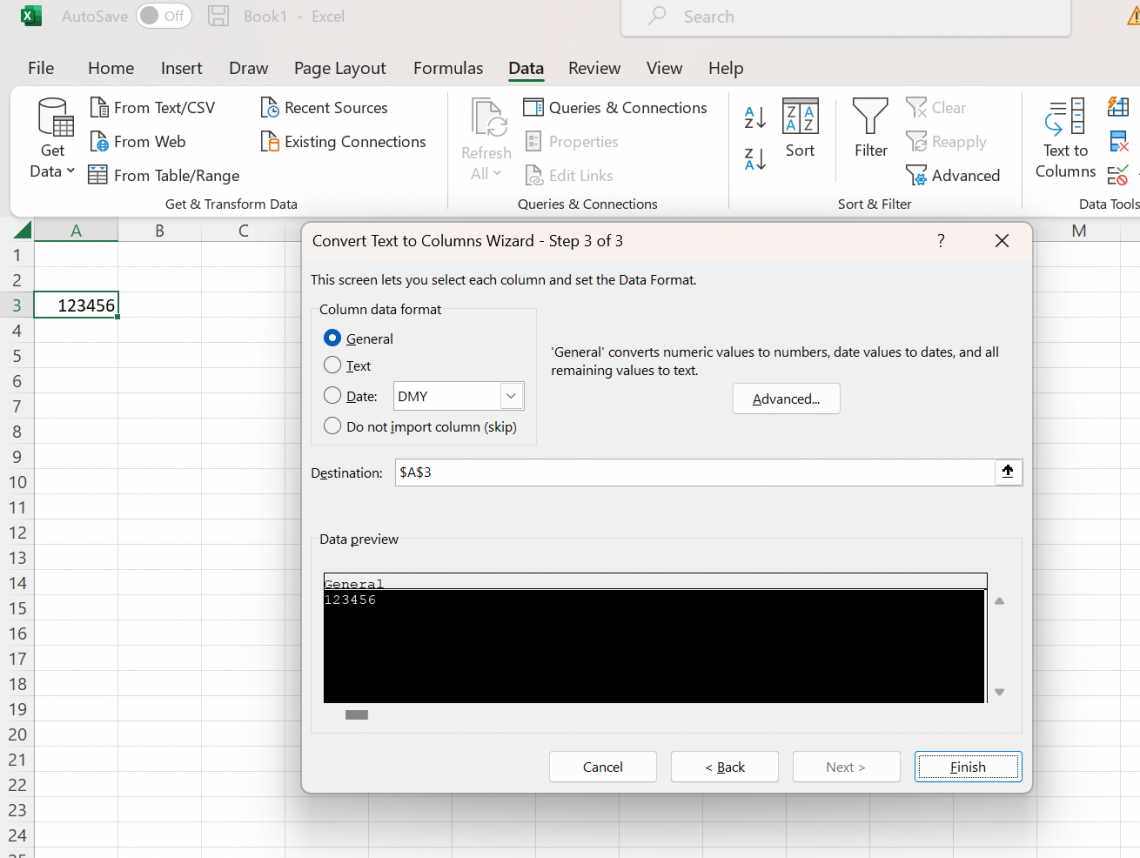
The function should now work as expected on the values converted to text.
However, sometimes this function does not work, and a “ #VALUE ” error occurs.
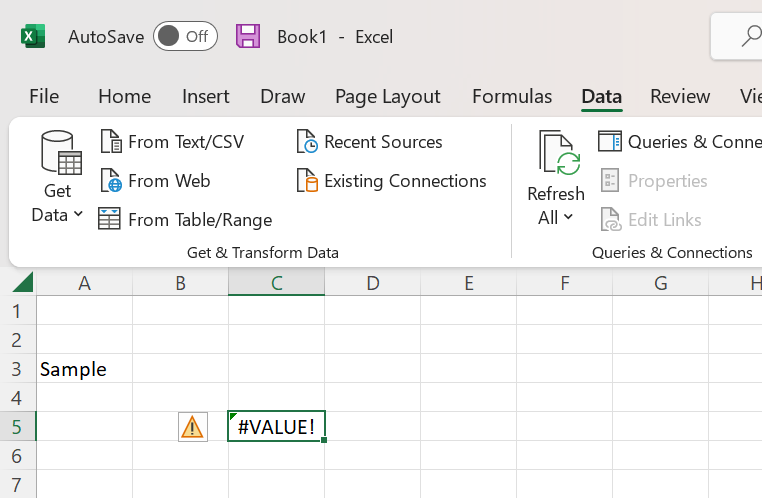
This happens when the given start_num or num_chars argument is negative or has a non-numeric value
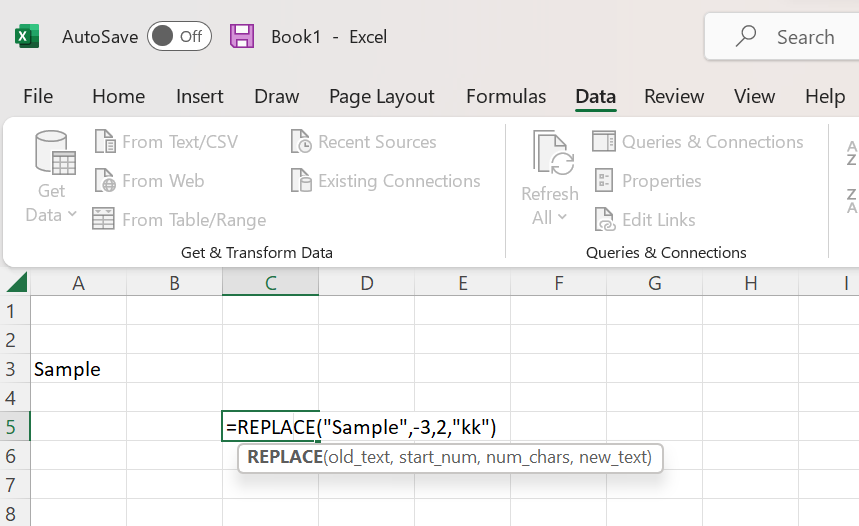
This can easily be solved by double-clicking on the cell and correcting the values which might be wrong.
Example of Replace Function in Excel
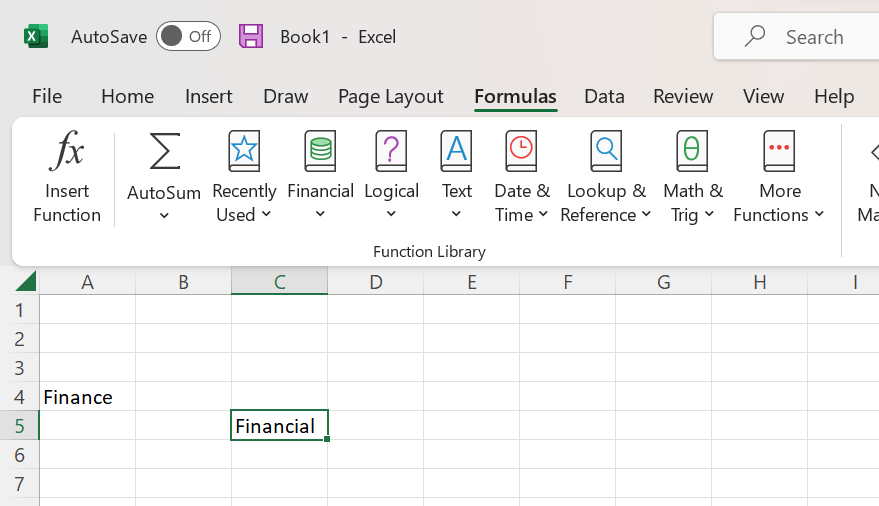
If you want to change the word “finance” with “financial” in excel, then use this function.
The steps to do so would be as follows:
Step 1 - Select the cell containing the new text
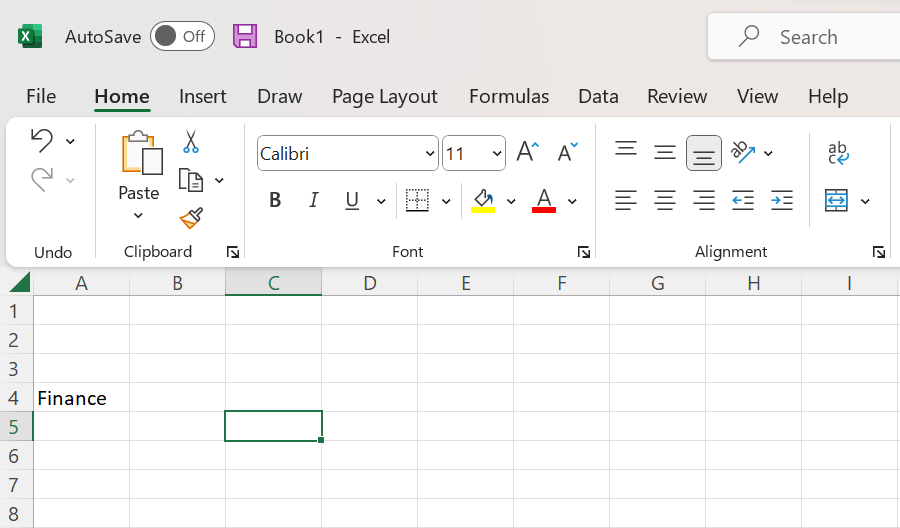
Step 2 - Type =REPLACE( in the selected cell
Step 3 - Enter the arguments as shown and close the function
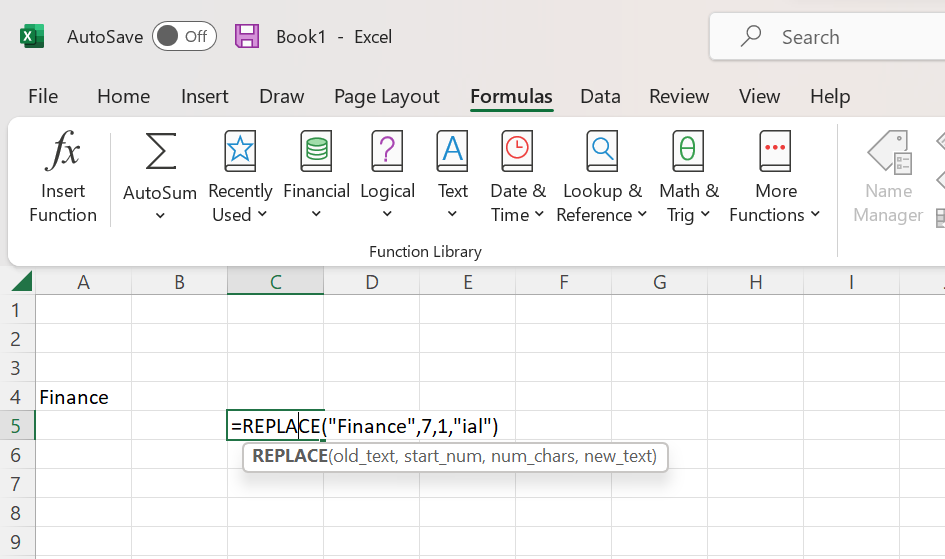
- Write “Finance” first as the old_text argument because that is the work you want to replace.
- After this, type 7 as start_num, as after the 7th letter is the part you want to change to make it financial.
- Type 1 as num_chars as you only want to exchange the last 1 letter with something else.
- At last, write “ial” as new_text because to make the word “finance” to “financial,” you only need to change the last letter “e” to “ial.”
Step 4 - Click enter when done. And your new text will be there in the selected cell
SUBSTITUTE VS. REPLACE Function
When you want to replace a specific piece of text in a text string, use SUBSTITUTE; when you want to replace all of the content that appears at a particular spot in a text string, use REPLACE. This function also falls under the String/Text function.

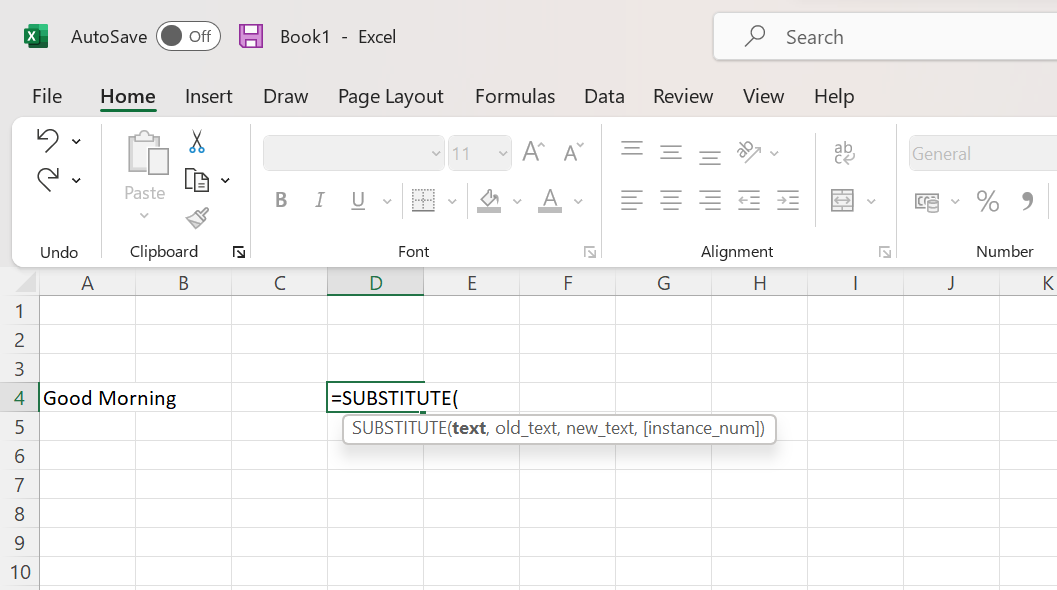
=SUBSTITUTE(text,old_text,new_text,[instance_num])
The arguments for the SUBSTITUTE function are as follows:
- Text(required) - The text or the cell containing text for which you want to substitute characters.
- Old_text (required)- The text to be replaced.
- New_text (required) - The new text you want to put there.
- Instance_num (optional) - Specifies which occurrence of old_text you want to replace with new_text. If you specify instance_num, only that instance of old_text is replaced. Otherwise, every occurrence of old_text in the text is changed to new_text.
Example of Substitute Function in Excel:
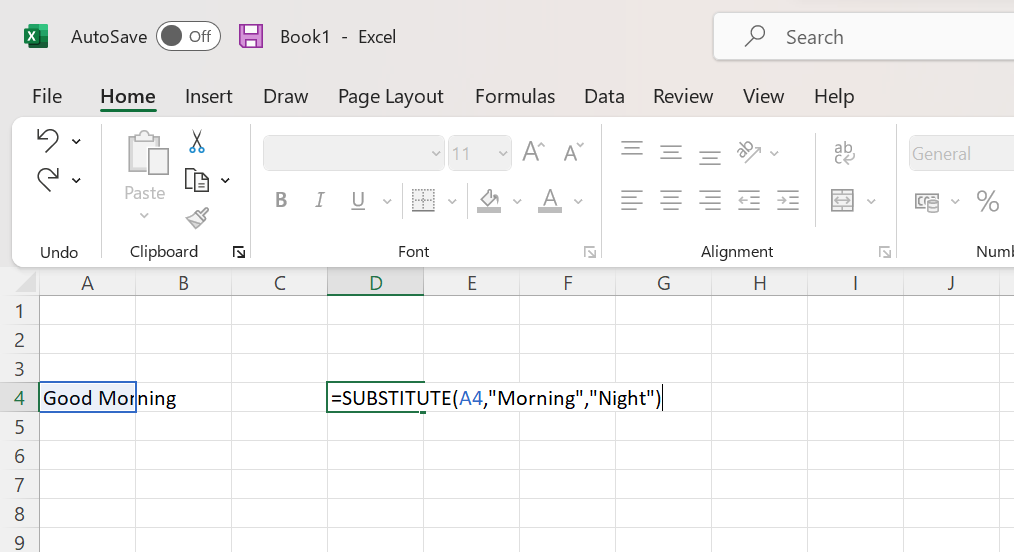
If you want to replace “Morning” in the “Good Morning” text with “Night,” then use the SUBSTITUTE function as shown;
Step 1 - select the cell which will contain the new text
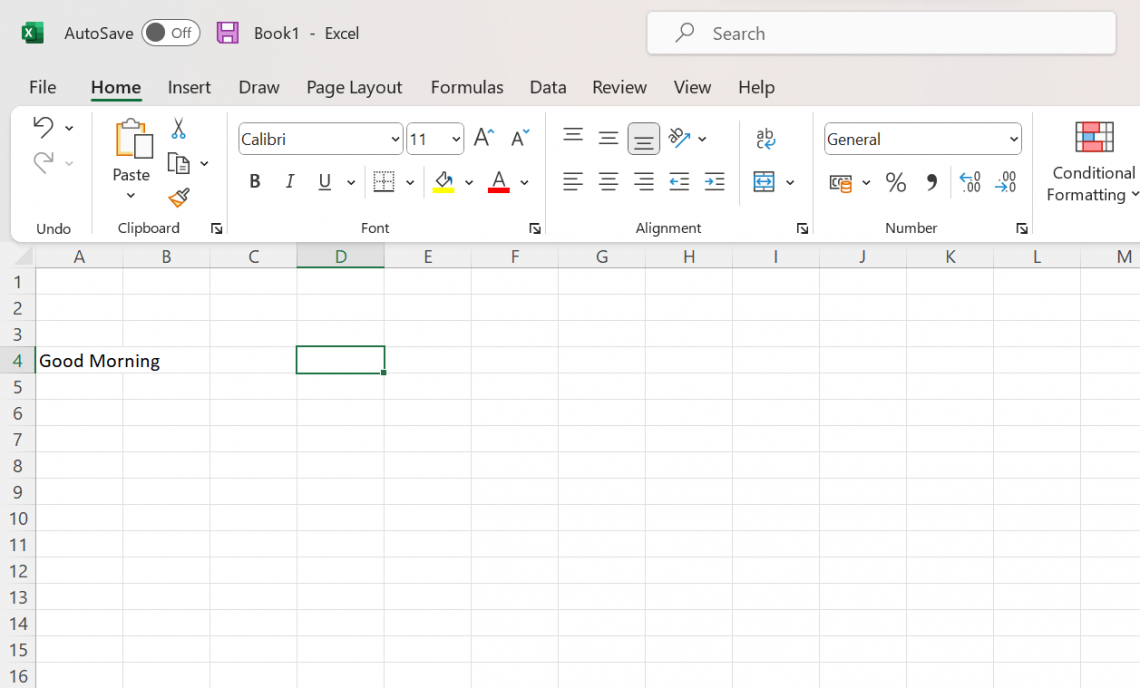
Step 2 - Type =SUBSTITUTE( in the selected cell
Step 3 - Enter the arguments as shown and close the function
Step 4 - Click Enter when done. And your new text will be there in the selected cell
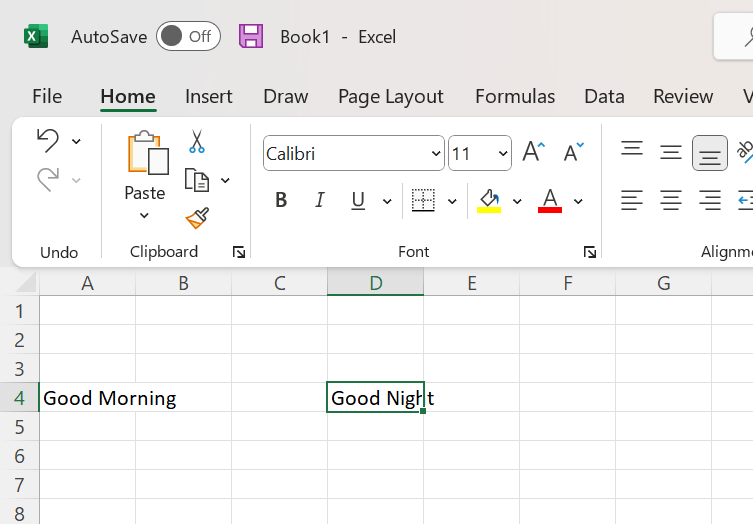
This way, you can easily replace and substitute and replace texts, numbers, and different characters in just a few steps using these functions. It is essential to follow these steps exactly as shown because even a small mistake can alter your required results majorly.
REPLACE Function FAQs

This function replaces part of a text string with a different text string based on the number of characters you specify. This function is useful when the location of the text to be replaced is known or can be easily determined.
The formula for this function is:
=REPLACE(old_text,start_num,num_chars,new_text)
It can be manually or directly selected from the TEXT functions drop-down menu in the FORMULA tab.
There are several reasons why your function might not be working. Some of the reasons are:
- The sheet is unprotected
- #VALUE error occurring due to putting negative or has a non-numeric value in the start_num or num_chars argument.
- You might have selected the wrong cell.
- The excel sheet might be corrupted.
You can locate the REPLACE function by following the below steps:
- Select an empty cell containing the result
- Click on the FORMULA tab from the ribbon
- Select the TEXT option.
- Click on the REPLACE option from the drop-down menu.
- Enter the Old_text, Start_num, Num_chars, and New_text arguments in the newly opened window and select ok.



or Want to Sign up with your social account?