
Install and Enable PitchBook Excel Plugin
A piece of software that gives the Microsoft Excel spreadsheet program access to new features.


An Excel plugin is a piece of software that gives the Microsoft Excel spreadsheet program access to new features. It may offer more functions, resources, or information to expand Excel's functionalities.
Plugins are frequently created by independent businesses or people and can be installed in Excel to expand its functionality beyond the built-in Microsoft features.
There are various types of Excel plugins, including:
- Data analysis tools
- Reporting tools
- Financial tools
- Project management tools
- Mapping tools
- Workflow tools
- Collaboration tools
- Import/Export tools
The financial data and software company Pitchbook provides a thorough database of private market data, including information on private equity, venture capital, and M&A transactions.
Users can access Pitchbook data straight from Microsoft Excel using the Pitchbook install the plugin, offering a seamless and integrated financial analysis and modeling solution. It includes information on private companies, investor information, and transaction data.
This information can be utilized to develop unique financial models, examine market trends, and conduct thorough due diligence on investments made in the private sector. The plugin can be tailored to the user's unique needs and requirements and is made to be simple to use.
Private equity, venture capital, and M&A professionals frequently use the Pitchbook install plugin because it offers a complete and user-friendly solution for financial analysis and modeling in Excel.
- An Excel plugin is a piece of software that gives the Microsoft Excel spreadsheet program access to new features.
- There are various types of plugins, including data analysis, reporting, financial, project management, mapping, workflow, collaboration, and Import/Export tools.
- The Pitchbook website hosts the install plugin for Pitchbook.
- Example of pitchbook install plugin Market Analysis, Due diligence, Financial Modeling, Portfolio Analysis, and Investment Screening.
Excel Plugins
Solver and the Analysis ToolPak are two examples of add-ins that come standard with Excel. Other add-ins can be downloaded and installed from the Download Center first. Then there are add-ins developed by outside parties, like a coder employed by your company or a software solutions provider.
These can be DLL add-ins, Visual Basic for Applications (VBA) add-ins, or Component Object Model (COM) add-ins. To use these add-ins, they must also be installed. The majority of add-ins fall into one of three categories:
1. Excel extensions
Excel add-in (.xlam), Excel 97-2003 add-in (.xla), DLL add-in (.xll) files, or automation add-ins are common examples.
After installing Excel or Microsoft Office, you might have access to some add-ins, including Solver and the Analysis ToolPak. Usually, using these add-ins only requires activating them.
2. Downloaded add-ons
From Downloads at Office.com, additional add-ins for Excel can be obtained and installed.
3. Custom add-ons
Custom automation add-ins, VBA add-ins, XLL add-ins, and Component Object Model (COM) add-ins are frequently created by developers and solution providers. You can't use them until you load them.
Before looking at the different plugins available, let us see how to make a plugin available on our computers.
The steps are
- Download: It is available on Microsoft's Office Store, Excel Campus, Excel Jet, etc.
- Install
- Enable: Go to the File menu > select Options > select Add-ins > Select plugins from the list and click the checkbox next to it.
- Use: Access the plugin's features from the Excel ribbon or a dedicated menu or toolbar.
Depending on the plugin you're using, your computer's operating system, and other circumstances, the precise procedures and requirements for making a plugin available may change.
The most recent and correct information should always be consulted on the plugin's website or its support materials.
Types of Excel Plugins
The various Plugins available to ease the lives of Excel users are
1. Data analysis tools
They provide additional tools and functions for data analysis. As economists, this is the most useful tool for many of us. This tool, with its sub-tools, makes it easy to deal with large bundles of datasets.
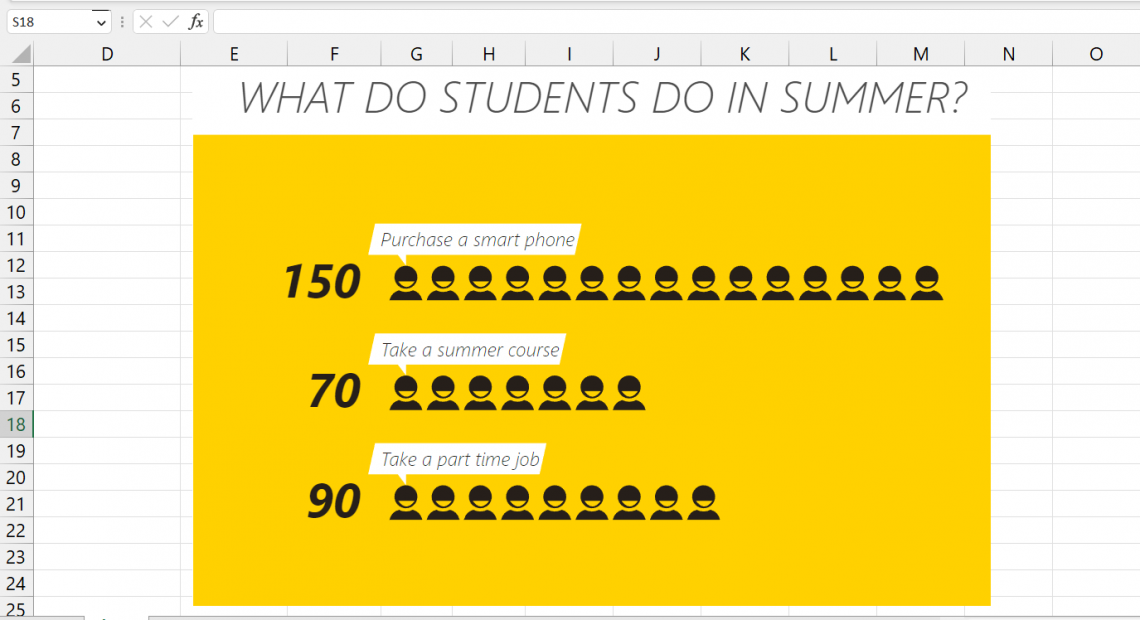
Some common data analysis tools include
| Data Analysis Tool | Explanation/Use | |
|---|---|---|
| 1 | Pivot Tables | Help create interactive tables that summarize and group data differently. |
| 2 | Data Visualization | Includes numerous tools for creating charts, graphs, and other visually appealing representations |
| 3 | Statistical Analysis | Provides tools for regression analysis, correlation analysis, and hypothesis testing. |
| 4 | Forecasting | Includes tools for creating forecasting models and predicting future trends based on historical data. |
| 5 | Data Cleaning | Provides functions and tools for cleaning and transforming data, such as removing duplicates, filling in missing values, and converting data types. |
| 6 | Data Mining | Helps extract patterns and insights from large datasets. |
| 7 | Data Mapping | Helps create interactive maps and visualizations from geographical data. |
2. Reporting tools
They help create professional reports, including charts, graphs, and tables. Isn’t creating your speedometer, bubble charts, or radial bar charts fascinating instead of those boring traditional charts?
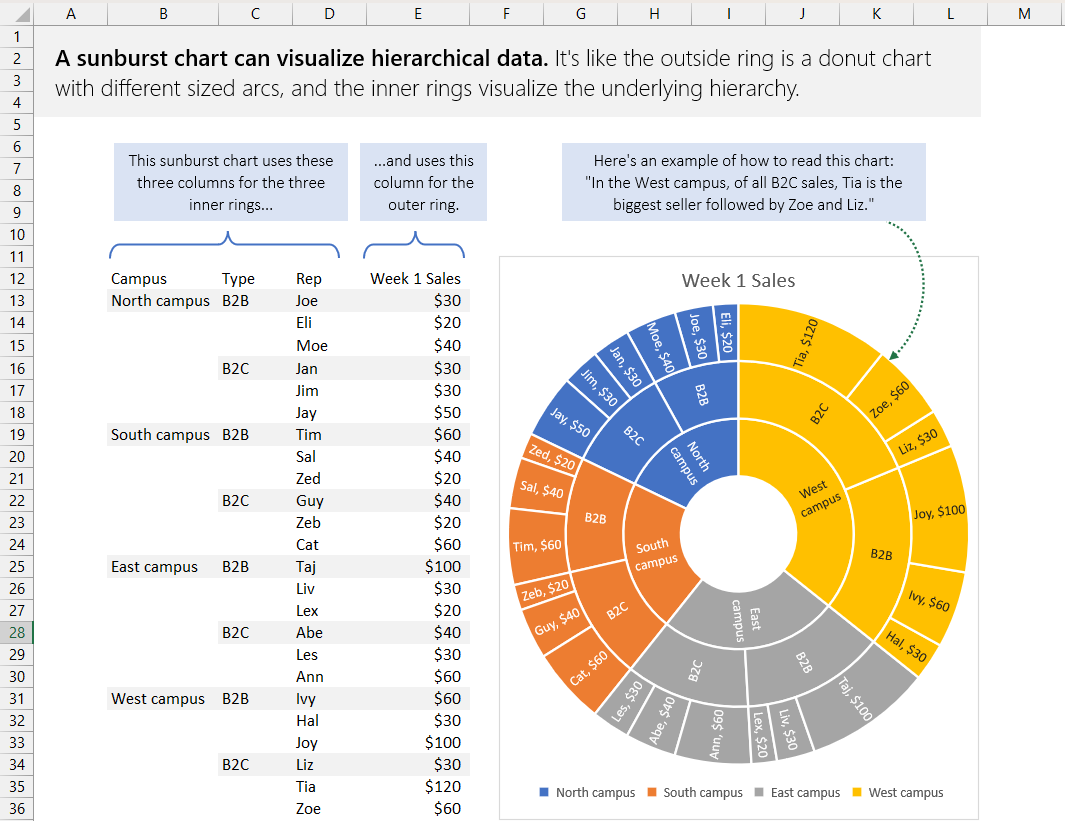
Some common reporting tools include
| Reporting Tools | Explanation/Use | |
|---|---|---|
| 1 | Charts and Graphs | Creating interactive charts and graphs, such as bar charts, line charts, and scatter plots. |
| 2 | Dashboards | Creating interactive dashboards that provide an at-a-glance view of key data and metrics. |
| 3 | Report Templates | Include pre-built report templates. |
| 4 | Data Filtering and Sorting | Allows users to filter and sort data in real-time. |
| 5 | Data Visualization | Creating visual representations of data, such as heat maps and treemaps. |
| 6 | Customizable Reports | Helps create custom reports by selecting specific data fields, formatting options, and chart types. |
| 7 | Report Sharing | Includes tools for sharing reports with others, either by sending a file or publishing to a shared location. |
3. Financial tools
These are designed to help with financial analysis and management. If simplifying life, it is so pleasing when we can do all the math with simple tricks and no lengthy calculations.
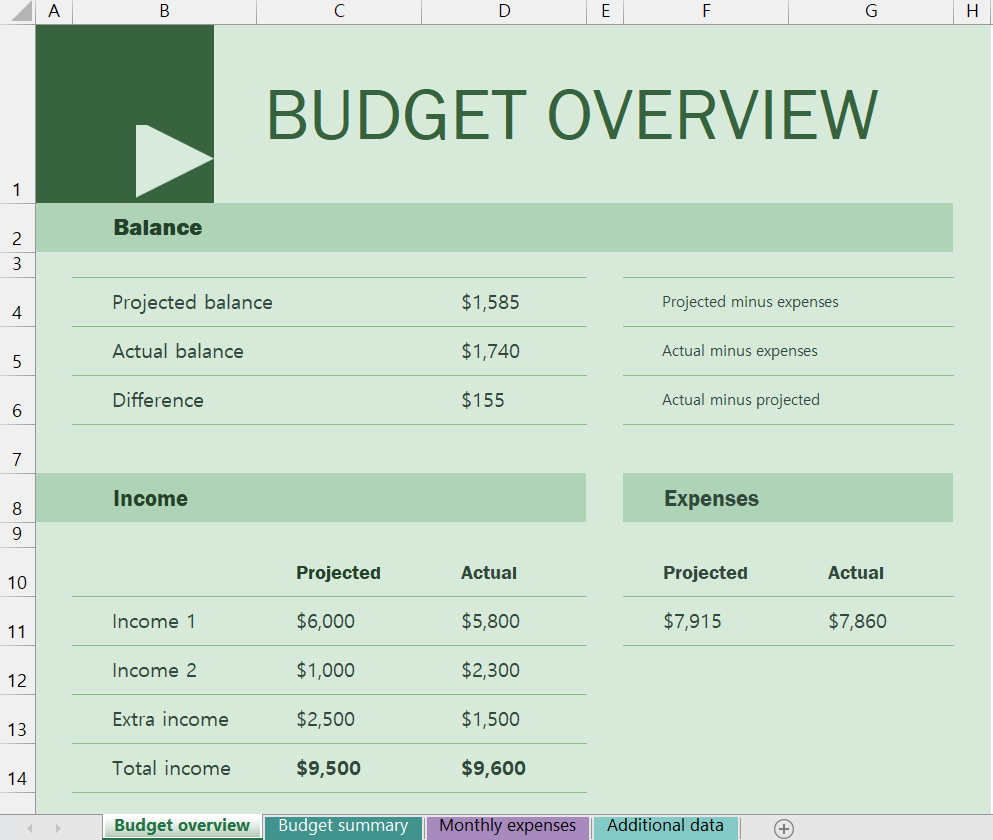
This can be accomplished with some common financial tools, including
| Financial Tools | Explanation/Use | |
|---|---|---|
| 1 | Budgeting | Creating and managing budgets, forecasting, tracking, and reporting tools. |
| 2 | Financial Modeling | Creating financial models and projections, including discounted cash flow analysis and Monte Carlo simulation tools. |
| 3 | Investment Analysis | Helps analyze stock and bond performance, portfolio analysis, and risk management. |
| 4 | Loan Analysis | Helps analyze amortization schedules, interest calculations, and loan-to-value ratios. |
| 5 | Financial Planning | Creating retirement planning, estate planning, and tax planning. |
| 6 | Financial Statements | Creating and analyzing balance sheets, income statements, and cash flow statements. |
| 7 | Portfolio Management | Helps manage investment portfolios, including portfolio performance analysis and asset allocation. |
4. Project management tools
The project management tools help users with project planning and management, including task assignments, resource allocation, and project timelines.
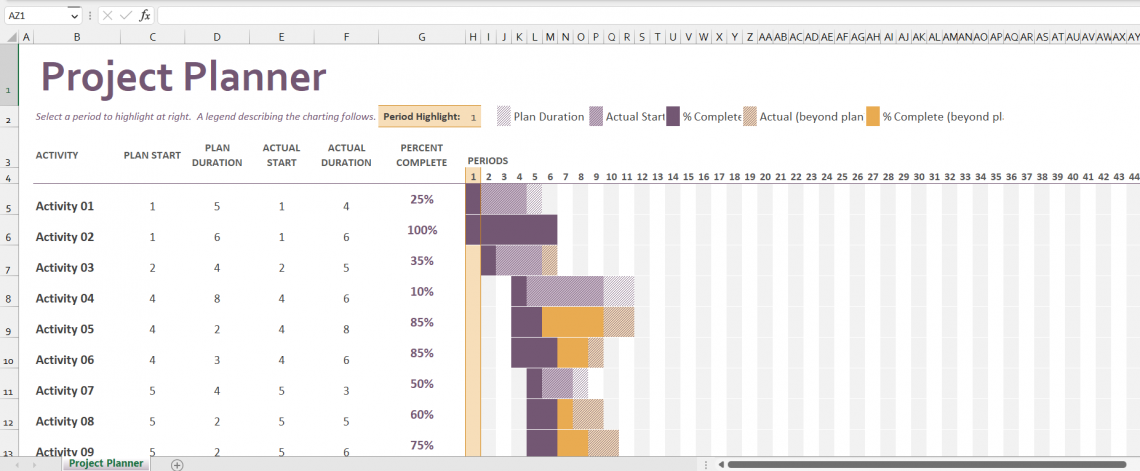
Some common project management tools include:
| Project Management Tools | Explanation/Use | |
|---|---|---|
| 1 | Collaboration | Tools facilitating collaboration and communication among team members, including shared calendars and task lists tools. |
| 2 | Budget Tracking | Helps in cost tracking, invoicing, and project profitability analysis. |
| 3 | Time Tracking | Helps track time spent on different tasks and projects, including time estimates and actual time logged. |
| 4 | Risk Management | Helps identify, assess, and mitigate project risks. |
| 5 | Project Scheduling | Offers Gantt charts, network diagrams, and critical path analysis tools for creating project schedules |
| 6 | Resource Allocation | Helps allocate people, materials, and equipment to different tasks and projects. |
|
7 |
Task Management | Creating and managing task lists, including assigning tasks, setting deadlines, and tracking progress |
5. Mapping tools
These tools enable users to create interactive maps and visualizations from geographical data.
Note
It is interesting to note that apart from basic visuals, Excel lets you create real maps similar to those we used to create in our history and geography class.

Some common mapping tools include
| Mapping Tools | Explanation/Use | |
|---|---|---|
| 1 | Geocoding | Helps convert addresses or postal codes into geographic coordinates (latitude and longitude) and vice versa |
| 2 | Map Visualization | Creating interactive heat maps, choropleth maps, and symbol maps. |
| 3 | Route Optimization | Helps optimize routes and find the shortest path between two or more locations. |
| 4 | Territory Management | Helps manage sales territories, including territory assignment, boundary creation, and sales performance analysis. |
| 5 | Geo-Demographic Analysis | Helps analyze data about geographic locations, such as population density, demographics, and income. |
| 6 | Location Analytics | Helps analyze and visualize data concerning specific locations, such as customer locations or store locations. |
6. Workflow tools
They automate repetitive tasks and simplify workflows, such as data entry and validation.
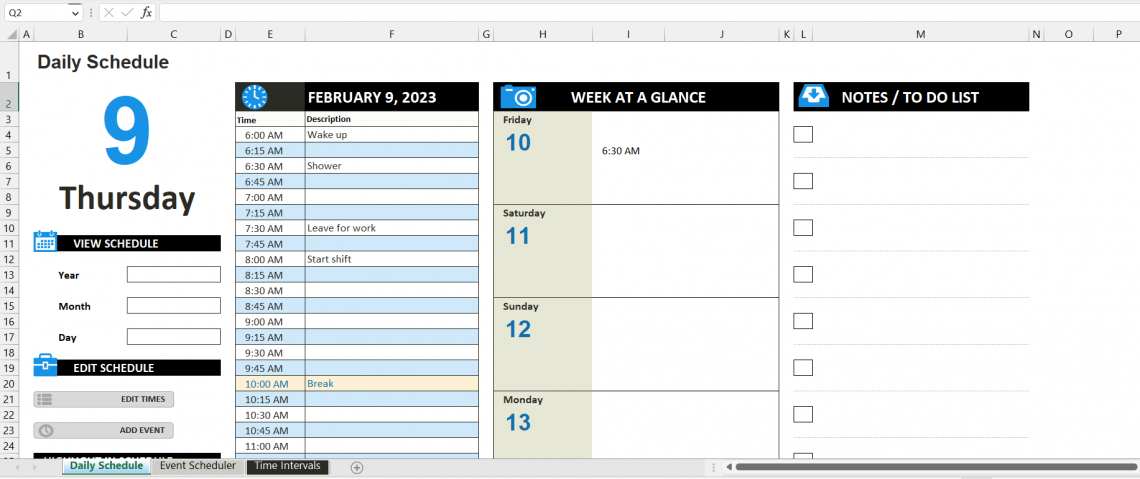
Some common Workflow tools include
| Workflow Tools | Explanation/Use | |
|---|---|---|
| 1 | Process Automation | Helps automate repetitive tasks, such as data entry, form submissions, and document approvals |
| 2 | Approval Workflows | Helps to create and manage approval workflows, including setting up rules, tracking progress, and sending notifications. |
| 3 | Task Management | Helps create and manage task lists, assign tasks, set deadlines, and track progress. |
| 4 | Collaboration | Facilitates collaboration and communication among team members, including shared task lists, calendars, and comments. |
| 5 | Data Validation | Helps validate data entered into a form or spreadsheet, including setting up rules and error notifications. |
| 6 | Document Management | Helps manage and organize documents, including version control, approvals, and document history. |
7. Collaboration tools
These tools enhance teamwork and cooperation, allowing numerous users to work on the same Excel spreadsheet simultaneously.
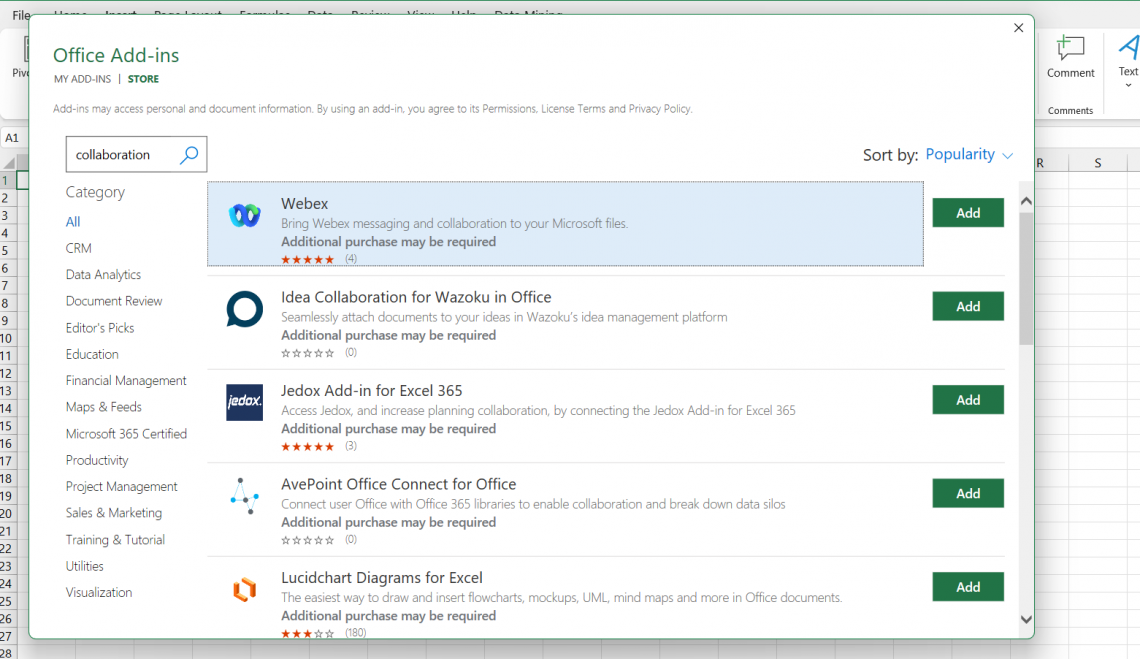
Some common collaboration tools include:
| Collaboration Tools | Explanation/Use | |
|---|---|---|
| 1 | Real-Time Collaboration | Includes shared editing and commenting. |
| 2 | Version Control | Helps track changes and manage different spreadsheet versions, including version history and conflict resolution. |
| 3 | Task Management | Helps create and manage task lists, assign tasks, set deadlines, and track progress. |
| 4 | Document Sharing | Helps share documents and spreadsheets with team members and stakeholders, including permissions and access control. |
| 5 | Comments | Helps add and track comments on spreadsheets, including notifications and responses. |
| 6 | Project Management | Helps manage projects, including task lists, calendars, and resource allocation. |
| 7 | Chat | Helps in real-time communication and collaboration, including chat rooms and direct messaging. |
8. Import/Export tools
Import/Export tools enable Excel to import and export data in different formats, such as CSV, XML, and JSON.

Some common Import/Export tools include:
| Import/Export Tools | Explanation/Use | |
|---|---|---|
| 1 | Data Import | Helps import data from various sources, including databases, spreadsheets, and cloud services. |
| 2 | Data Export | Helps export data to various formats, including CSV, XML, and JSON. |
| 3 | File Conversion | Helps convert files between different formats, including XLS, XLSX, and PDF. |
| 4 | API Connectivity | Helps connect to various APIs, including REST APIs and web services, to import and export data. |
| 5 | Data Mapping | Helps map data between different formats and structures, including field mapping and data normalization. |
| 6 | Data Cleansing | Helps clean and transform data, including removing duplicates, filling in missing values, and converting data types. |
Advantages and Disadvantages of plugins
The following are a few benefits and drawbacks of utilizing the plugins. Depending on the plugins being used and the wants and requirements of the user, the actual impact of these elements will vary.
Benefits
Below we mention some benefits of using Excel plugins:
1. Greater Functionality
The plugins can add new features like sophisticated data analysis, financial modeling, project management, and workflow automation, considerably enhancing its functionality.
2. Ease of Use
These plugins are created to be simple and connect with Excel without requiring users to learn new programs or procedures.
3. Time Savings
By automating time-consuming chores and procedures like data entry and report generation, plugins can help users save a lot of time.
4. Enhanced Collaboration
Plugins can offer collaboration tools, including real-time communication and version control, which can enhance communication between team members and stakeholders.
5. Enhanced Productivity
The plugins can offer cutting-edge tools and functions, such as data analysis, reporting, and project management, that can significantly boost productivity.
Disadvantages
On the other hand, some of the disadvantages of Excel plugins are:
1. Compatibility Problems
Some Excel plugins might not work with all versions of Excel or other programs, which could lead to compatibility problems and restrict the plugin's use.
2. Price
Using Excel may become more expensive if a plugin requires a membership or license charge.
3. Complexity
Particularly for inexperienced users, certain plugins may offer sophisticated features and functionalities that are complex and challenging to use.
4. Learning Curve
For those already familiar with Excel, learning how to use new Excel plugins may require users to expend time and effort.
5. Security Issues
Excel plugins can present security hazards, including malware, unauthorized access to sensitive data, and data breaches, which must be carefully managed.
Pitchbook Install Plugin
Typically, the Pitchbook website hosts the install plugin for Pitchbook. You can check for the plugin on the Pitchbook website by visiting the product offers or tools section and searching for "Excel Plugin" or "Pitchbook Install Plugin."
The plugin can then be downloaded and installed into your Microsoft Excel environment by following the instructions. If you search online with terms like "Pitchbook install plugin download" or "Pitchbook Excel plugin," you could also be able to locate information on the plugin.
This may direct you to tools like user forums or support articles that provide further details on where to find and how to install the plugin. To make the Pitchbook install plugin available, you will need to follow these steps:
- Subscribe to Pitchbook
- Download: Look for the "Excel Plugin" or "Pitchbook Install Plugin" in the product offerings or tools section.
- Install
- Log In
- Start Using the Plugin
Examples of Pitchbook Install Plugin
Here are some instances of utilizing the Pitchbook install the plugin:
1. Market Analysis
The plugin assesses market trends in private equity, venture capital, and M&A transactions using information on investment size, industry, and geography. Finding investment opportunities and comprehending market dynamics may be aided by this.
2. Due diligence
The plugin can do comprehensive due diligence on potential investments. This involves accessing comprehensive financial data on privately held businesses, such as sales, profitability, and growth patterns.
3. Financial Modeling
The plugin can build unique financial models, such as scenario planning, discounted cash flow analysis, and sensitivity analysis. Assessing investment opportunities and calculating the prospective return on investment can be helpful.
4. Portfolio Analysis
It helps evaluate the performance of a private market portfolio using knowledge of investment return, sector allocation, and geographic exposure. Portfolio managers and financial advisors may find this helpful in monitoring and assessing their investments.
5. Investment Screening
The information on firm size, revenue, profitability, and growth tendencies helps evaluate possible investments. This can help find lucrative investment ideas and conduct initial research.

or Want to Sign up with your social account?