
DOLLARFR Function
An important function of Excel Financial Functions that help convert a dollar price in Decimal into a dollar price in Fractions.

What Is The DOLLARFR Function?
The DOLLARFR Function is an important function of Excel Financial Functions that helps convert a dollar price in Decimal into a dollar price in Fractions.
Introduced in the 2007 version of MS Excel, the DOLLARFR function falls under the Financial Function category. It only accepts and returns numeric values.
In this article, we will understand the function’s syntax and explore different examples to help us understand this Financial Function better.
Excel has 2 DOLLAR Functions:
- DOLLARDE
- DOLLARFR Function
So, what's the difference between them
The DOLLARDE and DOLLARFR Functions in Excel are both financial functions but opposites in their Functioning. The DOLLARDE Function helps to convert a Fraction into a Decimal, whereas, as discussed earlier, the DOLLARFR Function helps to convert a Decimal into a Fraction.
Now, let's explore the reasons for using the DOLLARFR function. It is commonly used by professionals in the field of finance. Some of its applications include:
- Pricing: The prices of bonds are represented in Fractional forms, like 1/8, 1/32, 1/64, etc. Here the DOLLARFR Function helps to convert these numbers from Fractional form to Decimal form.
- Analyzing Data: If the input data is in the form of fractions, then the fractions to Decimal conversion can be done by using the DOLLARFR Function.
- Reporting: When the reporting data is in Fractions, it can easily be converted to Decimals using the DOLLARFR Function. Similarly, while presenting the data, this Function helps to convert fractions into Decimals.
So, a person might use this function mainly to make the data more understandable, maybe standard, for smooth understanding and interpretation of Financial Data for smooth and successful decision making.
The Syntax for DOLLARFR Function is
=DOLLARFR(decimal_dollar, fraction)
Where,
- Decimal Dollar (decimal_dollar), a required argument, refers to a Decimal number.
- Fraction (fraction), also a required argument, refers to the integer which will be used as the denominator of a fraction.
The Syntax’s return value is the Dollar value in Fractional notation.
- The DOLLARFR function is an Excel Financial Function that converts a fractional dollar price into a decimal number.
- Users provide arguments, including the fractional dollar price and the denominator. It returns the decimal representation of the fractional dollar price.
- The function is commonly used in financial modeling, currency conversion, and investment analysis, where representing prices and values as decimal numbers is essential for accurate calculations and decision-making.
- Potential errors that users might encounter when using the DOLLARFR fucincludeuch as providing invalid input values or referencing cells with incorrect data, and how to address them effectively.
Examples of DOLLARFR Function
Let’s consider a few examples to understand the concept and functioning of the DOLLARFR Function in MS Excel.

Example 1: Using Dollar Values
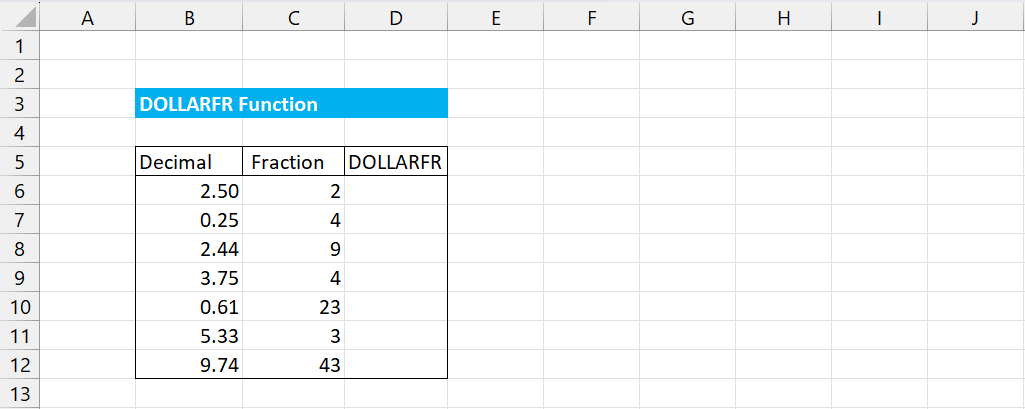
Consider the following example where we have decimal dollar values and corresponding fractions as denominators.
In this step, we use the DOLLARFR Function by using the syntax discussed before:
=DOLLARFR(decimal_dollar, fraction)
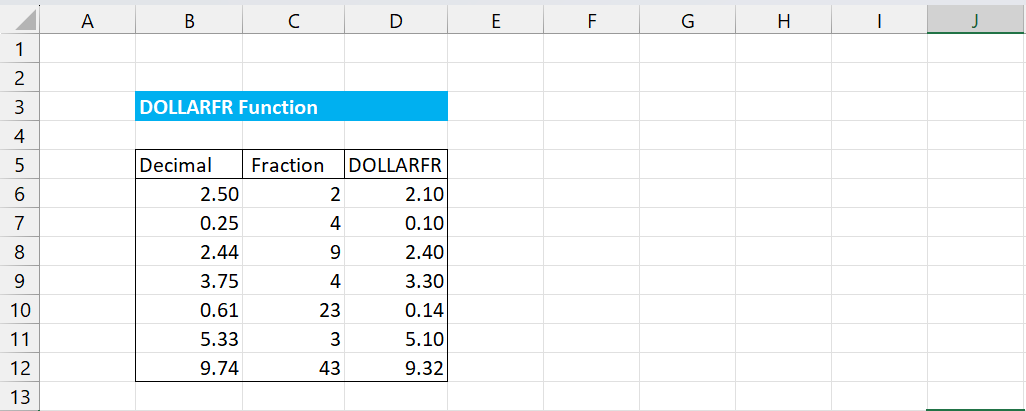
We use the cell referencing method, referencing Cell B6 in decimal_dollar and C6 in fraction, and arriving at the result in Cell D6.
After that, you can either drag it or copy and paste it into cells D7:D12 and arrive at the results shown in the picture below.
There are various other ways in which this Financial Function of converting a fractional value into a decimal value can be used according to one's needs and creativity.
Let’s look at Example 2 and Example 3, where we use the DOLLARFR Function in areas that do not include dollars to grasp the function’s functionality and how it works.
Example 2: Finding Time
In this example, we will examine how time in decimal form is converted into fractional form using the DOLLARFR Function.
Here, we can see the time given in decimal form (Cell B20).
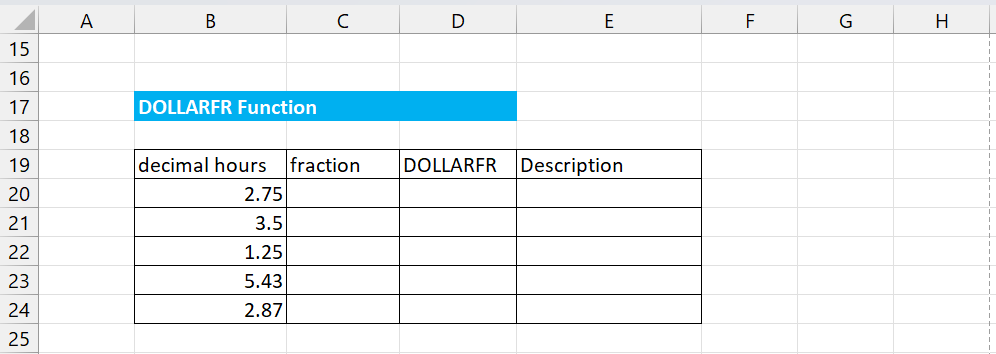
Now, we know that the fraction input will be 60 since there are only 60 minutes in an hour!
So, we input 60 in all the cells under Fraction. The table will now look something like this.
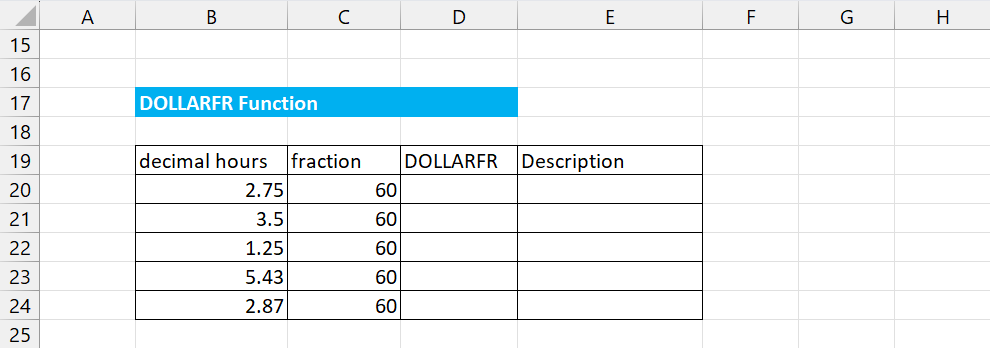
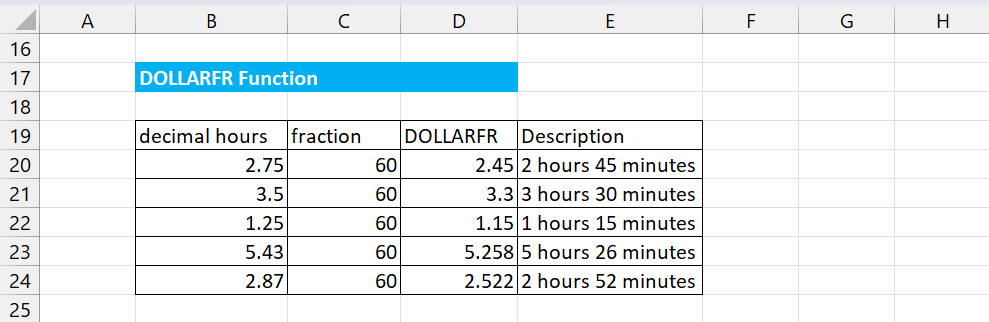
Now, we use the DOLLARFR Function in Cell D20 using the same method as in Example 1, referencing B20 for decimal dollars and C20 for fractions, and arrive at the result shown below.

Now, to cross-check whether the answer is correct, we use the following function in E20.
=INT(B20) & " hours " & ROUND((B20 - INT(B20))*60, 0) & " minutes"
We then copy and paste the formula into the remaining cells and arrive at the following results.
Example 3: Height in Fraction
In this example, we will examine how height in decimals can be converted into height in fractions.
Here, we can see the height given in the decimal form, in feet.

We know that 1 ft = 12 inches, so we use this denominator under the fraction header, as shown in the image below.
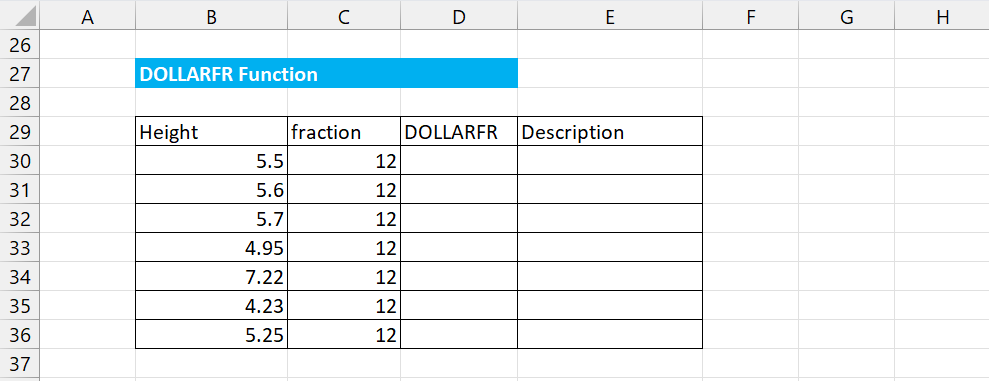
Now, like Example 1 and Example 2, we use the DOLLARFR Function in Cell D30 using Cell B30 as the decimal dollar and C30 as the fraction reference.
We achieve the results as shown below.
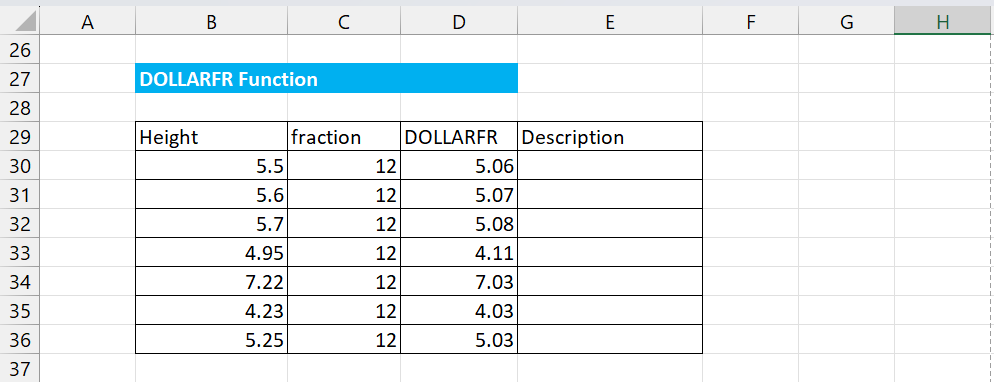
Now, to cross-check if the answer is correct or not, we use the following function in E30.
=INT(B30) & " foot " & ROUND((B30 - INT(B30))*12, 0) & " inches "
We then copy and paste the formula into the remaining cells and arrive at the following results.

By looking at the 3 examples above, one must understand the concept of how DOLLARFR Functions, and by understanding it thoroughly, one can use this function on a wide spectrum of things.
DOLLARFR Function - Points to Remember
While using this Function in Microsoft Excel, one must remember the following points to avoid any mistakes or errors.

- The Return Value will be #NUM! , if the fraction argument is negative (<0).
- The Return Value will be #DIV/0! , if the fraction argument is Zero (=0).
- The Return Value will be #VALUE! , if any of the two arguments are not in numerical form.
- If the fraction is a Decimal, it will be truncated into an integer.
The Fractional number can be converted back into a Decimal number using the DOLLARDE Function.
If the argument is in percentage form, it should be converted back to decimal form by dividing it by 100 because the formula expects the input to be a Decimal number and not a percentage.
This Function allows referencing to other cells and hardcoding the numbers as arguments. Although it was introduced in MS Excel 2007, users of MS Excel 2003 can still access it using the Analysis ToolPak Add-in.
In the introduction, we also understood the DOLLARDE Function and the difference between the DOLLARDE and DOLLARFR Functions. It is important to know both functions since they do the exact opposite of each other.

The DOLLARFR Function is display-only, i.e., it cannot use the return value for calculations or charts. Hence, it is important to reconvert such values into the decimal form using the DOLLARDE Function.
Looking at the examples discussed in the article, it is clear that even though the function's name has DOLLAR, it doesn't necessarily mean that the function's scope is restricted.
This function can be used dynamically by using your ideas and creativity to make working on Microsoft Excel easy!

Free Resources
To continue learning and advancing your career, check out these additional helpful WSO resources:


or Want to Sign up with your social account?