
SECOND Function
An Excel Date/Time function that returns the second component of the time that can vary between 0 and 59 depending on the time value used as an input.


What Is The SECOND Function?
The SECOND function is an Excel Date/Time function that returns the second component of the time that can vary between 0 and 59 depending on the time value used as an input.

Generally, time is made up of three different components - hours, minutes, and the second.
In a single day, there are 24 hours, each made up of 60 minutes, and each minute is made up of 60 seconds. Thus, a 24-hour clock has a total of 86,400 seconds.
When you generally input time in Excel, it may automatically get represented in hh:mm format. However, you can easily change the format to show the second component.
The second component of time may look insignificant in general but has a lot of importance in real-life scenarios. For example, do you remember the 2009 World Championship 100 M dash when Usain Bolt set a World record?
Usain finished the race in first place, with a world record time of 9.58 seconds, followed by Tyson Gay, who came in second at 9.71 seconds. What separated these two prodigies was just a few milliseconds; imagine if there was no metric to track such a small period.
Considering its importance, we will see the SECOND function, how to use it, and a couple of examples.
- The SECOND function in Excel extracts the seconds from a time value.
- The SECOND function returns an integer between 0 and 59, representing the second component of the given time.
- The SECOND function is useful in time data analysis, allowing you to break down time values into individual components.
- It can be used in combination with other date and time functions to manipulate and analyze time data effectively.
How The SECOND function Works?
The SECOND is categorized as a date-and-time function that extracts the second component of time as a value between 0 and 59, depending on the time value.
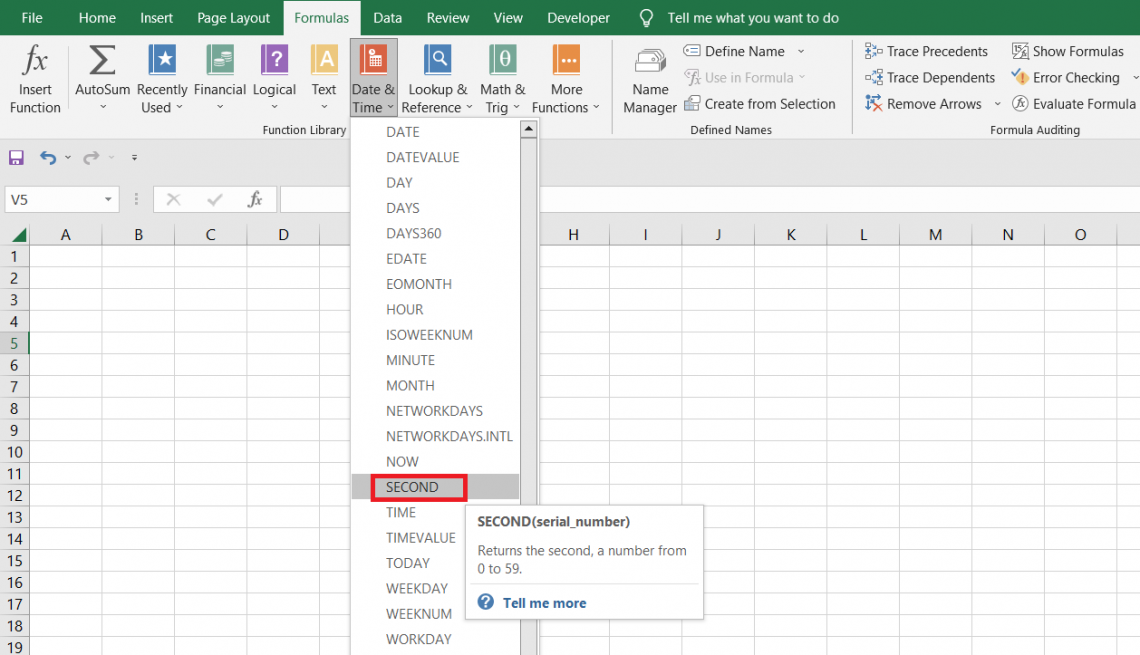
For example, if the time is equal to 11:48:21 A.M., the function returns the second component as 21. Since the time is represented in HH:MM:SS format, the last two digits represent the seconds for a given time.
Similarly, if the time is 13:21:59, the function returns the result as 59.
Seems so easy, right? The question is,” Does the function have easy-to-understand syntax as well”?
The function asks for a single argument which can be a hardcoded value or a cell reference to a time value.
The syntax for the function is
=SECOND(serial_number)
where - (required) the time value from which we want to extract the second component. This is a required argument that accepts the time even as text strings (for example, “11:45:00 AM”) or as a decimal number(such as 0.84375, which corresponds to 8:15 PM)

Example for the SECOND function
So far, we have covered the function and how it works. The next step is to see it in action and what result you should expect when you input any value inside the function.
Suppose you have the data as illustrated below:
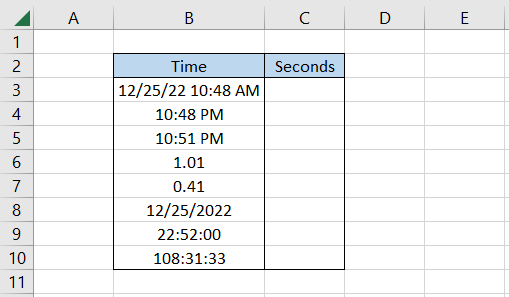
To find the second component for each of the values in column B, we will use the formula =SECOND(B3) in cell C3 and drag it down till cell C10, which gives the result:

From the various results returned in column C, we can make several interpretations:
- For the date and time given in cell B3, we get the result 51. Even though the time is represented in HH:MM format, the seconds are stored in the background; hence, we get the number as our result.
- The same goes for the next two values in cells B4 and B5, where we get 2 and 55, respectively.
- Next, we have several decimal numbers in cells B6 and B7. We know that time can be stored as decimal numbers in Excel. A 24-hour clock can assume values between 0 and 1.
The decimal number 1.01 corresponds to 12:14:24 AM, while 0.41 corresponds to 9:50:24 AM. Since both the numbers have 24 as the seconds component, we get the same result using the function. - In cell B8, we only have the date value as 25th December 2022. Since no time component is involved, we get the result as zero or seconds from the default time of 12:00:00 A.M.
- Finally, we have time represented in a 24-hour clock format where 22:52:00 has zero as the seconds component.
The time 108:31:33 is an extension of the 24-hour clock, but we still need the value 33, which can be obtained using the SECONDS function.
Practical Example Of SECOND Function
Suppose you have big algorithmic trading software that automatically makes a series of trades with a single click. For example, let’s say you make buys in Tesla using the software. The data looks as illustrated below:
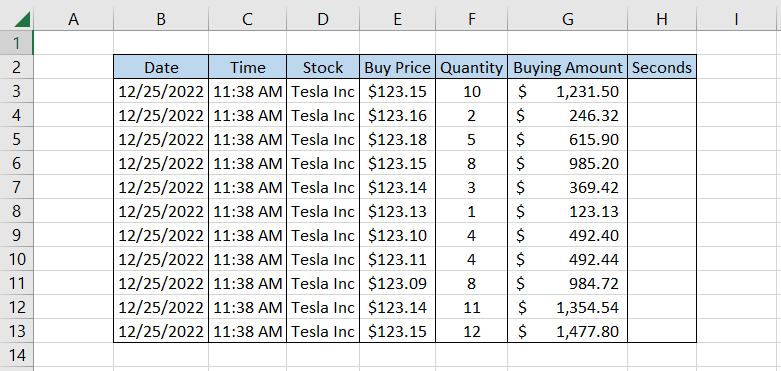
Suppose we wanted to find at what particular seconds the trades were undertaken at time 11:38 A.M. In that case, we can use the formula =SECOND(C3) in cell H3 and drag it down till cell H13, which gives the result:
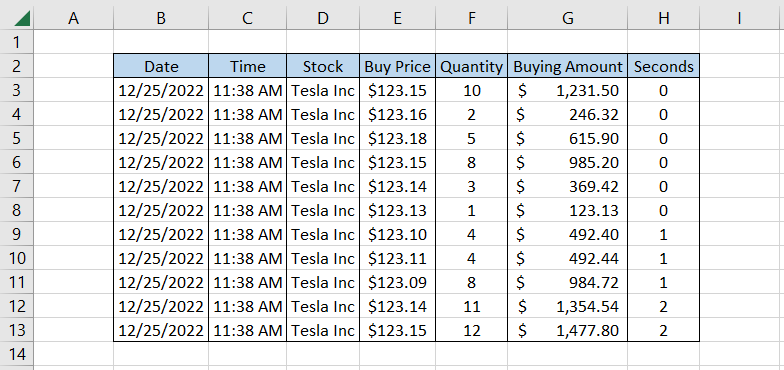
As you can see, most trades were undertaken at 11:38:00, which is why we get the second component as zero. For some other trades, we get the seconds component as 1 and 2, respectively.
Further, we can even build pivot tables to understand at what second how many quantities of stocks were bought and at what buying amount.
The fields that we will drag to various areas to get the pivot table are illustrated below:
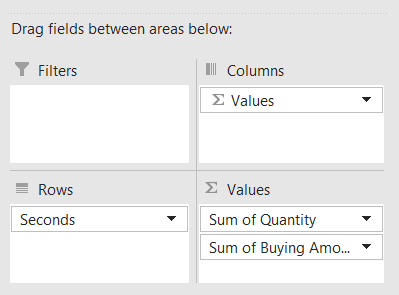
With the selected fields, you get the pivot table.
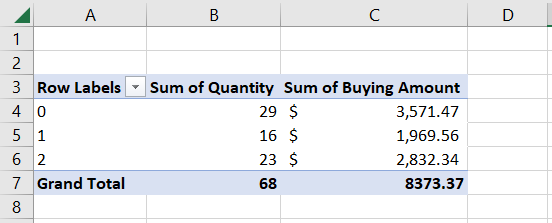
This provides an in-depth insight into what quantity of stocks was bought for how much at a particular second at time 11:38 A.M.

SECOND vs. HOUR function
The HOUR is categorized as a date-and-time function that returns the hour component of the time between 0 (12:00 A.M.) and 23 (11:59 P.M.), depending on what time value you use as an input.

Let’s say you ordered a McD’s at 9:48:23 P.M. If the time was stored in an Excel spreadsheet and you wanted to extract the hour component, we will use the HOUR function, which gives the result of 9.
The syntax for the function is:
=HOUR(serial_number)
where,
serial_number - (required) the time value from which we want to extract the hour component.
NOTE
The argument can also be in the form of text strings (for example, “11:10 P.M”) or decimal values (such as 0.96527777, which corresponds to 11:10 P.M).
Let’s see an example to understand the difference in the result for both functions. Suppose we have the time values in Excel, as illustrated below:
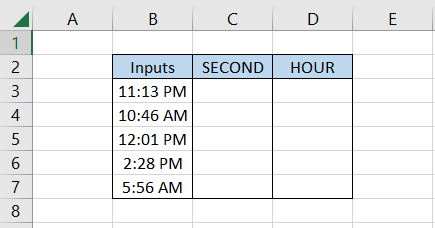
To extract the seconds component, we will use the formula =SECOND(B3) in cell C3 and drag it down to cell C7 to get the result:
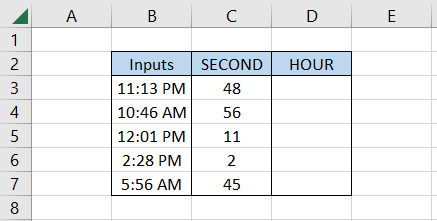
Similarly, we will use the formula =HOUR(B3) in cell D3 and drag it down till cell D7, which gives the result:
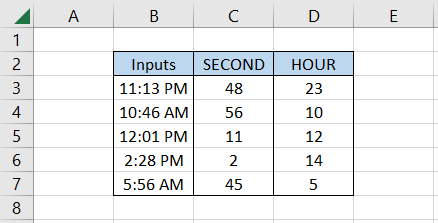
Wait, what? We have the time as 11:13 P.M. and still see the hour component as 23. Even though we have 11 in the HH:MM:SS format, the function identifies the time as a 24-hour clock.
A similar trend can be seen for the rest of the time values. All the time values after 12:00 P.M. will show a similar trend where the hour component will return from the 24-hour clock.
SECOND vs. MINUTE function
The MINUTE is another function categorized under Date and Time, which extracts the minute component of the time. The value can range between 0 to 59 depending on the given time value.
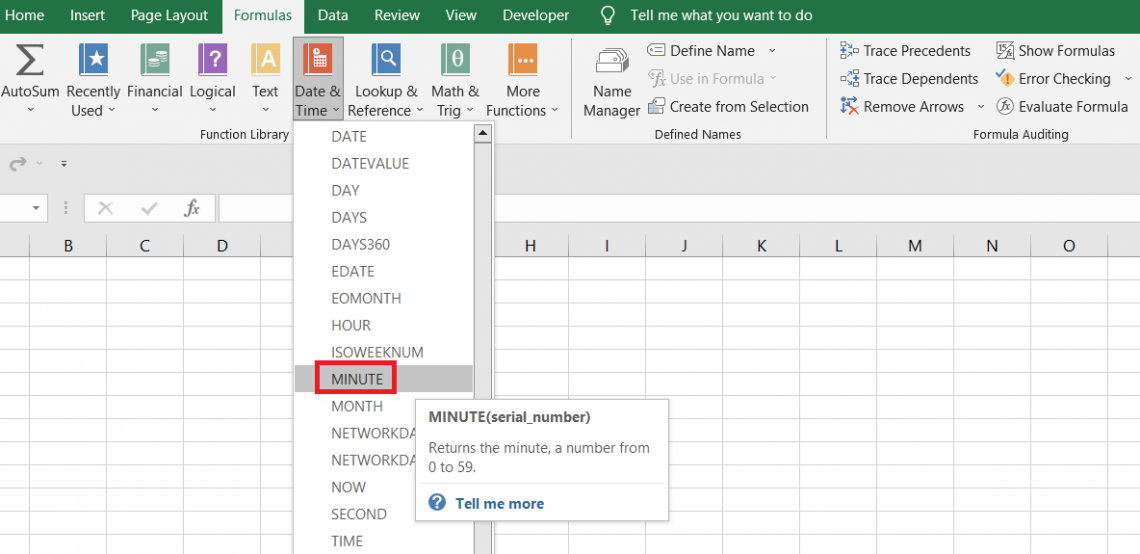
For example, if the time is equal to 1:43 P.M. and you use the function, it will return the result as 43.
The syntax for the function is:
=MINUTE(serial_number)
where
serial_number - (required) the time value from which we want to extract the minute component.
The argument can also be in the form of text strings (for example, “11:10 P.M”) or decimal values (such as 0.005555555, which corresponds to 12:08 A.M).
Let’s see an example to understand how the result for the MINUTE function compares to that of the SECOND.
Suppose we have the data as illustrated below:
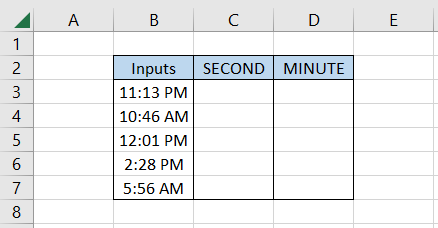
To extract the second component, we will use the formula =SECOND(B3) in cell C3 and drag it down to cell C7 to get the result:
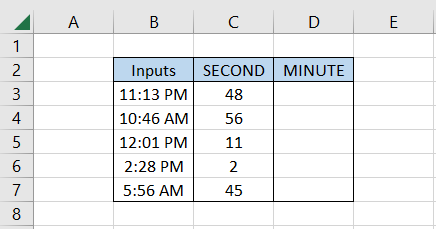
Similarly, we will use the formula =HOUR(B3) in cell D3 and drag it down to cell D7 to get the minute component as
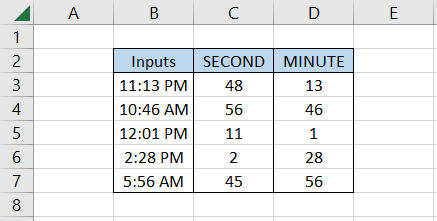
This way, as opposed to seconds, you can extract even the minute component from the given time values.
Free Resources
To continue learning and advancing your career, check out these additional helpful WSO resources:


or Want to Sign up with your social account?