
EXCEL cheats megathread

jchu whats good? As a first year analyst that's been WFH I know I’m way behind a normal analyst this far into the 2yr stint, especially when it comes to excel wizardry. Everyone please paste your excel shortcuts that have been huge for you.
Edit: I'll combine everyone's posts into this thread here, also included some PPT and some google sheets (if ya nasty)
ALT + W + N. Let’s you open up a new window in the same excel workbook
Quickly moving rows in an excel sheet:
- Go to a cell in the row you want to move, select the whole row (shift + space bar) and then hit ctrl+x
- Move to a cell in the row directly below where you want to move the other row and select the whole row (shift + space bar again), then hit ctrl + shift + the +/= button (next to backspace normally)
Same concept applies for columns. Also becoming comfortable with everything you can do with paste special (formulas, values, formatting, conditional formatting, the functions to divide / multiply) is critical.
Alt W V G removing guidelines
Alt H A R (or L or C) for aligning text
Alt H O I to auto adjust columns and rows width
Ctrl Shift 1 to convert to number format
Ctrl Shift 5 to convert to %
Alt = to sum column
Shit and space bar for row highlight
Ctrl and space bar for column highlight
Alt A G G - group columns/rowa
Alt A U U - ungroup
Alt H H - cell fill
Alt H W - wrap text
Alt H MC - merge cells
Alt A T - filter
Alt H P - format as percentage (follow with Alt H 0 to add a decimal point)
Alt H N - all text formatting options
Alt H L N - new conditional formatting rule
Alt H V F - paste formulas (yes I prefer Alt H V to Alt E S)
Alt H FP - format painter
Alt H FF - change font
Alt H FS - change font size
Alt H FC - change font color
Never merge cells in excel, but for some it's the closest they get to any M&AType 1,000 in a random cell, copy it (Ctrl + C) and then select a range of hard coded cells before hitting Alt + H + V + S to divide / multiply when your MD wants to change it between thousands/millions/billions.
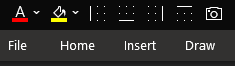
Changing the buttons on the quick access toolbar to Font Color, Fill Color, and the 4 borders. I can just hit Alt + 1,2,3,4,5,6 instead of going through Alt + HFC, or Alt HB, etc.
Alt + A + E enter enter enter = gets rid of green triangles
Alt + E + I + R = CTRL R -> but with this trick you can also go left, down or up with L / D / U
Alt + a + h (hide) and alt + a + j (show), just need to make sure you're selecting a cell or range in the grouped row / columnF2 - Edit Cell
Alt W F F for freeze panes
Shift F2 - CommentsThe indirect() function comes pretty handy if you want to quote data from multiple sheets with same format
Alt + F + I + S Saves a lot of time on dates and other series.
ctrl + space select column
shift + space select row
alt + h + o + i autofit column width
alt + h + e + a clear everything (including formatting)
alt + h + h + n no fill
alt + h + b + a/n set all/no borders
alt + a + t set filter
alt + a + c clear filter
alt + a + q advanced filter (use it for copying unique values in a column)
ctrl + d paste down
ctrl + r paste right
Google Sheets has one good shortcut: ctrl + shift + v to paste valuesEOMONTH(Date, No of Months) - For dates in in the future
Alt + E + S = Paste special
Alt + A + V + V = Create Data Validation List
Control + shift + 7 for borders
Control + shift + - to get rid of borders
F4 to lock and unlock cells in formulas
F12 to save as
Control + ~ to see all formulas (again to go back)
Definitely a fan of control [ and ] to trace references and then f5 to go back
Alt F Z E A to send your current workbook as an email (make sure you save it first!)
Alt F T to open the options menu (generally to turn off data tables/allow circular references
Also, note that in most menus there are underlined words, if you hold alt and hit the underlined letter it will go to that option in the menu and select/unselect it.Ppt:
ALT H G A M - align middle
Alt H G A C - align center
Alt H G G - group items
the align function can become Alt + 2 + _ for any align option.
Control + G to group
Control + shift + G to ungroup





ALT E S = God Mode in MW2
Obviously the OGs
Ctrl + w: close tab
Ctrl + shift + w: close window of tabs
Alt + tab: window selector
Ctrl + n: new window
Quickly moving rows in an excel sheet:
Same concept applies for columns. Also becoming comfortable with everything you can do with paste special (formulas, values, formatting, conditional formatting, the functions to divide / multiply) is critical
https://s3.amazonaws.com/wsp_sample_file/Excel-shortcuts-2016-Windows-M…
However, I prefer: alt e s t for paste special, instead of using ctrl+alt+v++
Out of curiosity, why do you prefer that? I’ve noticed from analysts / associates I know, most prefer that method but ctrl+alt+v seems more efficient given its one keystroke? If I remember correctly some people who would now be more senior tend to prefer the other method as I think ctrl+alt+v wasn’t an option in earlier versions of excel
Alt+E+S gives you a range of specials to choose from such as Alt+E+S+C for comments, Alt E+S+W for column width and more so generally more convenient
I find alt E S more tactile —- personal preference
Alt ES is easier to do one handed, that’s why I prefer it over Ctrl Shift V
Alt E S only requires your left hand. Means right hand can stay on your ten key or mouse. Just less overall movement leads to fewer unintentional formula busts.
Few more to add to the above:
Alt W V G removing guidelines
Alt H A R (or L or C) for aligning text
Alt H O I to auto adjust columns and rows width
Ctrl Shift 1 to convert to number format
Ctrl Shift 5 to convert to %
Alt = to sum column
Shit and space bar for row highlight
Ctrl and space bar for column highlight
Mobile app contributing to that formatting btw
Couple of ones I find useful
Excel:
Alt A G G - group columns/rowa
Alt A U U - ungroup
Alt H H - cell fill
Alt H W - wrap text
Alt H MC - merge cells
Alt A T - filter
Alt H P - format as percentage (follow with Alt H 0 to add a decimal point)
Alt H N - all text formatting options
Alt H L N - new conditional formatting rule
Alt H V F - paste formulas (yes I prefer Alt H V to Alt E S)
Ppt:
ALT H G A M - align middle
Alt H G A C - align centre
Alt H G G - group items
Both:
Alt H FP - format painter
Alt H FF - change font
Alt H FS - change font size
Alt H FC - change font colour
Two thoughts:
Agree with both points - my muscle memory/autism meant when I tried those it slowed me down but if you're coming fresh definitely do the above.
Never merge cells in excel
It's the closest I get to any M&A activity though
Type 1,000 in a random cell, copy it (Ctrl + C) and then select a range of hard coded cells before hitting Alt + H + V + S to divide / multiply when your MD wants to change it between thousands/millions/billions.
Changing the buttons on the quick access toolbar to Font Color, Fill Color, and the 4 borders. I can just hit Alt + 1,2,3,4,5,6 instead of going through Alt + HFC, or Alt HB, etc.
This is the real pro-move here, allows to do some really commonly used actions quickly
Bumping the thread. Great work op, SA this summer and I’ve been hoping for something like this
Alt + A + E enter enter enter = gets rid of green triangles
Does this really work? Just went to my excel and it doesn't seem to work for green triangles from errors.
This will be helpful especially when you're doing a copy/paste special a table from excel into ppt. the MD doesn't want to see any potential for error (i.e. green triangles). happened to me more than once.
Alt F T F B Enter will remove them for the whole sheet
Add things to your quick access toolbar if the shortcuts are long. For example in PPT, the align function can become Alt + 2 + _ for any align option.
Alt + E + I + R = CTRL R -> but with this trick you can also go left, down or up with L / D / U
Not a shortcut but one for nerds like me - is there a way to show/hide groupped rows/column with your keyboard only?
Alt + a + h (hide) and alt + a + j (show), just need to make sure you’re selecting a cell or range in the grouped row / column
The quick access toolbar (alt+ numbers) for both excel and PPT is massively underrated.
Good thread
F2 - Edit Cell
Shift F2 - Comments
The indirect() function comes pretty handy if you want to quote data from multiple sheets with same format
Just a suggestion OP: You should add all the suggestions to one central list at the top (in your post).
I will contribute something I recently learned - Alt W F F for freeze panes :)
bump
My current favorite is :
Alt + F + I + S
Saves a lot of time on dates and other series.
The Quick Toolbar is probably the most important for any excel/ppt user. Use this for common yet multi-step formatting shortcuts such as Borders, Number formats, Cell Colors. The best is probably Cell Coloring + Number Formatting + Border Formating + Cell Conditionals macro. It saves me hours everyday.
Alt + F4
Best command. Easily the most useful out of the lot.
came here to share this useful tip as well
bump
The ones I use every day
ctrl + space select column
shift + space select row
alt + h + o + i autofit column width
alt + h + e + a clear everything (including formatting)
alt + h + h + n no fill
alt + h + b + a/n set all/no borders
alt + a + t set filter
alt + a + c clear filter
alt + a + q advanced filter (use it for copying unique values in a column)
ctrl + d paste down
ctrl + r paste right
Google Sheets has one good shortcut: ctrl + shift + v to paste values
EOMONTH(Date, No of Months) - For dates in in the future
Alt + E + S = Paste special
Alt + A + V + V = Create Data Validation List
ctrl + ] for going to a linked cell, hit F5 + enter for going back to the original cell
Control + shift + 7 for borders
Control + shift + - to get rid of borders
F4 to lock and unlock cells in formulas
F12 to save as
Control + ~ to see all formulas (again to go back)
Definitely a fan of control [ and ] to trace references and then f5 to go back
PowerPoint
Control + G to group
Control + shift + G to ungroup
Put aligning objects, inserting shapes , inserting text boxes , inserting arrows in your shortcuts (alt 1, alt 2 etc.)
Ctrl + Alt + Left Arrow
Ppt / Word: Alt + shift + up/down moves entire bullets up or down
Holy shit thank you
Get Macabacus - it’s an absolute must-have and I can’t see my life without it.
Is it worth the cost?
It's ~10/month per user, which yeah, it's worth it, but your company will generally pay for it too.
Did you mean macbook by any chance bud?
Nah he meant Macabacus, and he's not wrong about how handy it is
https://macabacus.com/
Helpful indeed, was working with an analyst in a small boutique who was a huge fan of it. If you go in a BB however, you'll have something similar for ppt developed in-house so not worth in this case.
We have it as default at PJT and I love it - incredibly powerful and pre-loaded with hotkeys/quick formatting to firm standard. Also has a tracing mechanism that is much better than factory settings, as well as easy-output/chart refresh for PPT slides.
However I would recommend against getting it unless you are going to a firm that uses it because you will memorize the macabacus shortcuts that will be useless if you're not using macabacus.
Helpful info, thanks!
So glad I saw this post
So helpful, thanks!
Thought I'd drop this in from our Excel Modeling Course for your enjoyment:
Alt F Z E A to send your current workbook as an email (make sure you save it first!)
Alt F T to open the options menu (generally to turn off data tables/allow circular references
Also, note that in most menus there are underlined words, if you hold alt and hit the underlined letter it will go to that option in the menu and select/unselect it.
Ctrl + d (carries formula down)
Ctrl +r (carries formula right)
Alt+h+o+I (sit adjust column width)
Very helpful, thank you
follow
Bump
Holy shit
Lol
wow clutch - printing and posting on my wall lol
Bump
Bump
highlight row/column with cltr + space / shift + space respectively, then cltr + shift + plus to add a row/column
Centering Text (basic, but better than merging cells):
Start with the leftmost cell of the range you want to center text across. Enter your text.
Ctrl+Enter to enter the text and remain on the same cell.
Hold shift and right-arrow over the range you want to select.
Ctrl+1 to open formatting menu.
Right arrow over to "Alignment".
Tab down to the Horizontal dropdown under Text Alignment and select Center across selection (pressing "c" twice will get you there).
Press enter and enjoy never merging cells again!
I swear this forum taught me more than my undergraduate
Following
Open custom # formats: Ctrl + 1 + C + C
love this
Great list. Some additional shortcuts that come to mind are:
Shift + Alt + Right/Left Arrow (to group/ungroup rows)
Shift + Alt + Down/Up Arrow (to group/ungroup columns)
Shift + F10 (acts as a right click)
"Shit and space bar for row highlight"
I wouldn't recommend this...
Just learned more than my school could ever teach me.
F4 repeats your last action, so any long ALT+xyz string can be instantly recreated in new highlighted ranges by pressing F4
That's super useful
This is super helpful. Thank you!
Helpful!
Windows + D
Back to desktop
Following. Very useful tips! Hopefully there would be some for those using Macs as well!
Alt+= to auto sum
Alt+ctrl+V paste special
Shift+ > to highlight rows
F4 to repeat the last action performed
Ctrl+ pg up,down to navigate through worksheets
Alt+H+FC font colour
Ctrl+U to underline
Windows + E to open files
Windows, tab ,downward arrow to shut down my laptop without using my mouse
Alt+H+ FS for font size
F2 / fn +2 on a laptop to open a cell/ edit
Alt+ file tab ,using downward arrow to navigate to save,save as etc
Ctrl+A to highlight everything then alt + H + AL to align to the left
Shift+arrows to highlight specific words ,then Ctrl+B to Bolden, Ctrl+U to underline, Ctrl+I to italize, alt + H+ AC to align to the center if it's a heading
Thank you very much wall street Oasis, I feel really proud of myself. Not only can I apply these skills in excel but they also work in word and even PPT.
I'm looking forward to more especially after I graduate.
Bookmark
These are all great - another useful hack I haven't seen yet is:
ALT + H + O + M = copy a sheet from one Excel workbook to another Excel workbook
Then in the new Excel workbook using ALT + A + K you can either (i) kill the external references to the original workbook, which automatically replaces them with hardcodes or (ii) change the external references source from the original workbook to the new workbook. This (ii) is a huge time saver if the old and new workbooks are different versions of the same file (assuming the # of rows and columns didn't change between versions).
.
Shift+F11
insert a new sheet
The one I haven't seen yet is adding "document location" to your quick access toolbar. That gives you the file path of the document you're working in.
If you're sharing an excel (or ppt) with a reviewer, you can quick access the document location (quick access, then CTRL C), copy it in your email via a hyperlink (highlight text for your hyperlink and CTRL K, then CTRL V), and that let's you share the master version seamlessly.
hit F5, then Alt+s, then O, then X, then G, then E, and press enter. This will select all of the hardcoded aka data entry (i.e. non-formula) cells.
All of the highlighted cells should be blue (hardcodes). If you see something highlighted and it's not blue, look at it. If you see something blue, and it's not highlighted, look at it.
This is also the really quick way to turn an all-black font sheet into a properly formatted sheet.
bump
Et possimus ut aperiam doloremque laboriosam quasi. Laudantium quo autem ratione voluptatem. Ut cupiditate ut est eius a quis ea deserunt.
Ad numquam laboriosam cumque nobis. Sed ut occaecati est inventore. Aut fuga sint possimus praesentium ut praesentium. Esse dolores rerum repellat odio voluptas aut ut iste.
Veritatis natus dolore non unde saepe. Est sequi quo beatae totam. Occaecati iure in esse et laboriosam hic.
Harum et et tempora quam minima commodi autem. Repellendus voluptates quibusdam quia natus dolor tempore vero. Incidunt ratione et aut saepe. Qui placeat doloribus maiores officiis facere quos commodi.
See All Comments - 100% Free
WSO depends on everyone being able to pitch in when they know something. Unlock with your email and get bonus: 6 financial modeling lessons free ($199 value)
or Unlock with your social account...
Voluptatem vel numquam voluptatem dolor impedit sed. Inventore consequatur enim magnam. Quia velit mollitia hic corrupti dolorum.
Nesciunt ut dolor quo sequi temporibus. Omnis delectus dolore sunt eaque eaque totam. Assumenda omnis voluptatem repellat perferendis.
Et quae illum eveniet vel id nihil qui delectus. Eum officiis qui voluptas quaerat. Voluptas ut harum quae debitis.
Veniam accusamus et vel. Deserunt ullam et qui sunt vel eligendi. Mollitia et tenetur eaque dolor natus laborum. Architecto omnis eveniet ipsa ut aut. Cum est et quidem laboriosam minus. Explicabo alias ab cum. Ea error quia doloremque autem quos.
Omnis est cumque praesentium corrupti ducimus quae et. Nam quo adipisci incidunt et placeat reiciendis non autem. Ut dignissimos placeat similique eos autem. Enim non accusamus nobis doloremque soluta voluptas. Fugiat odio quia odit quidem sint cupiditate nihil.
Qui minus dicta distinctio nihil. Sed atque optio cum veritatis et necessitatibus. Dignissimos modi numquam explicabo ut. Dolorum eum porro rerum ut.
Sint placeat consequuntur excepturi error laudantium quis. Qui repellat a qui eos et.
Voluptate fugit voluptatem facilis mollitia magni assumenda nam. Laudantium inventore sint sit ut aut nisi cumque. Blanditiis fugit ullam et doloribus officiis eos et.
Eum maxime est repellat similique et ut libero. Eligendi deserunt quas asperiores explicabo. Veritatis et aperiam dolores sint sunt. Error sint beatae molestiae excepturi. Esse sunt animi qui quia.